How to design a carousel's slides in your brand
On this page
A carousel from the content calendar arrives with each slide’s text already written: title, short text, highlighted words and a template (cover, content, list or closing). Design slides (Diseñar diapositivas) draws them in your own style —your colours, your fonts, your logo and your @handle— in Instagram’s 4:5 format, and makes them the post’s images, in order.
Before you start
- The slides are dressed in your brand kit. If you don’t have one yet, SarAI builds it with you in a few minutes.
- Text in your brand costs no credits. Only AI images cost: 4 credits each, and the cost is shown before you generate.
Steps
-
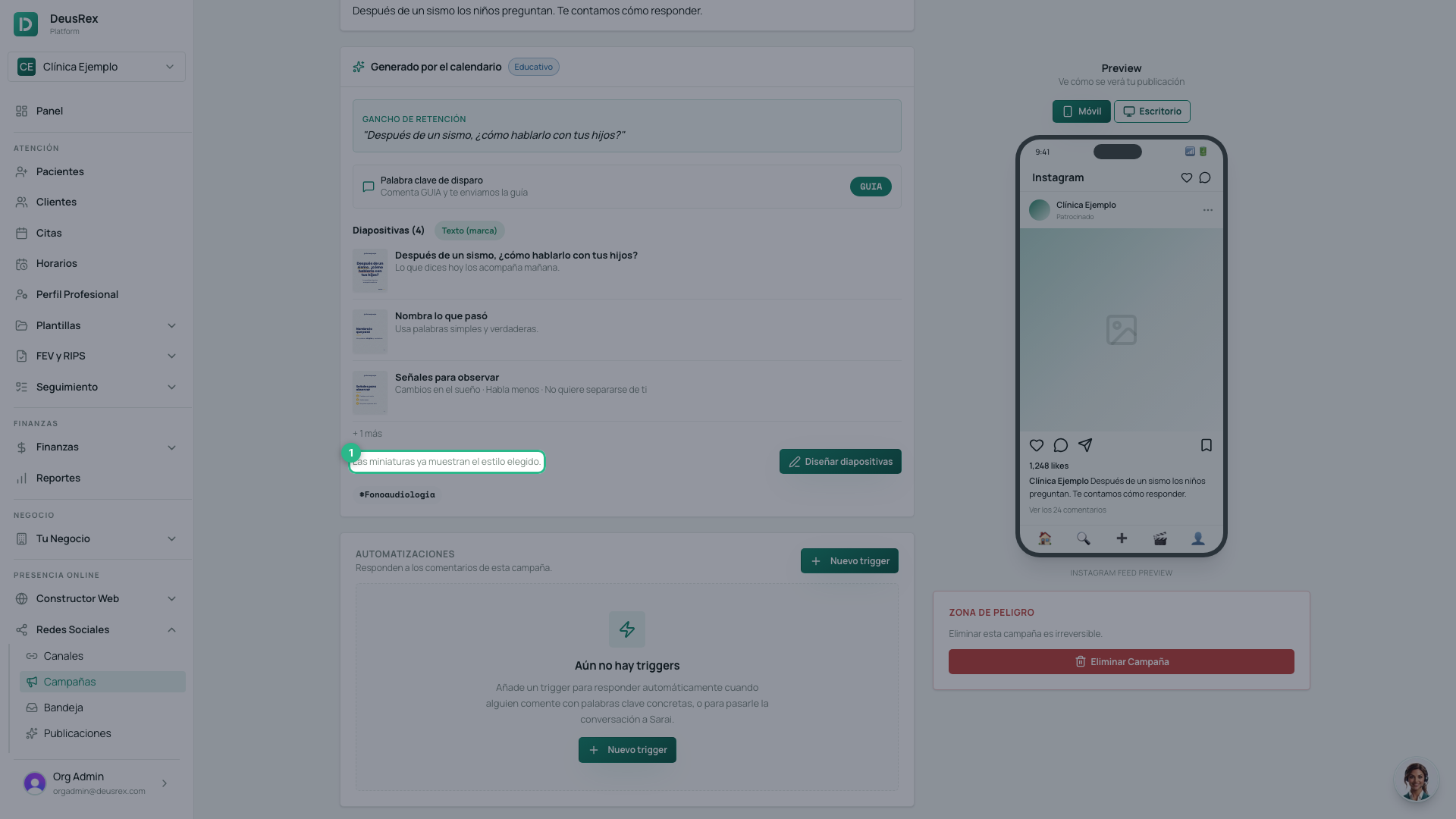
Open the post in Social Media → Campaigns (Redes Sociales → Campañas). Under Slides (Diapositivas) you see the chosen style and the first slides already drawn in it.
-
Press Design slides (Diseñar diapositivas).
-
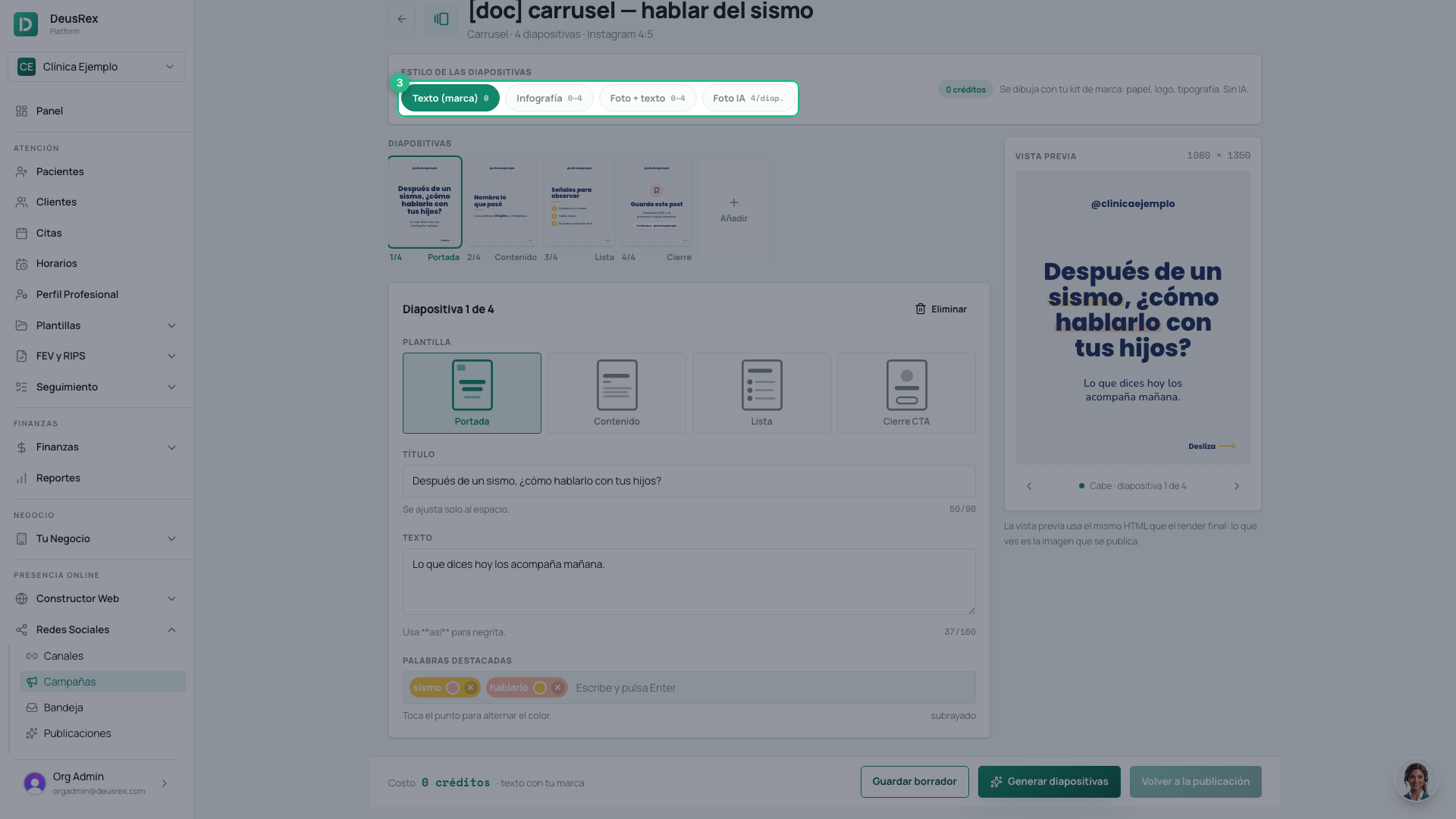
Choose the style for the whole carousel:
- Text (brand) (Texto (marca)) — paper, logo and a headline in your fonts. 0 credits.
- Infographic (Infografía) — highlighted words in pills, your brand shapes and an illustration on the cover (uploaded = 0; AI = 4 credits).
- Photo + text (Foto + texto) — a photo with a veil in your colour and the headline centred. The background is chosen per slide: your photo, an AI photo or your brand colour.
- AI photo (Foto IA) — one AI photo per slide, with no text on it. 4 credits per slide.
-
Tap a slide in the strip to edit it, and choose its template: Cover, Content, List or Closing CTA.
-
Write the title and the text. Write
**like this**to make a word bold. Under Highlighted words type a word from the title and press Enter; tap its dot to change its colour. -
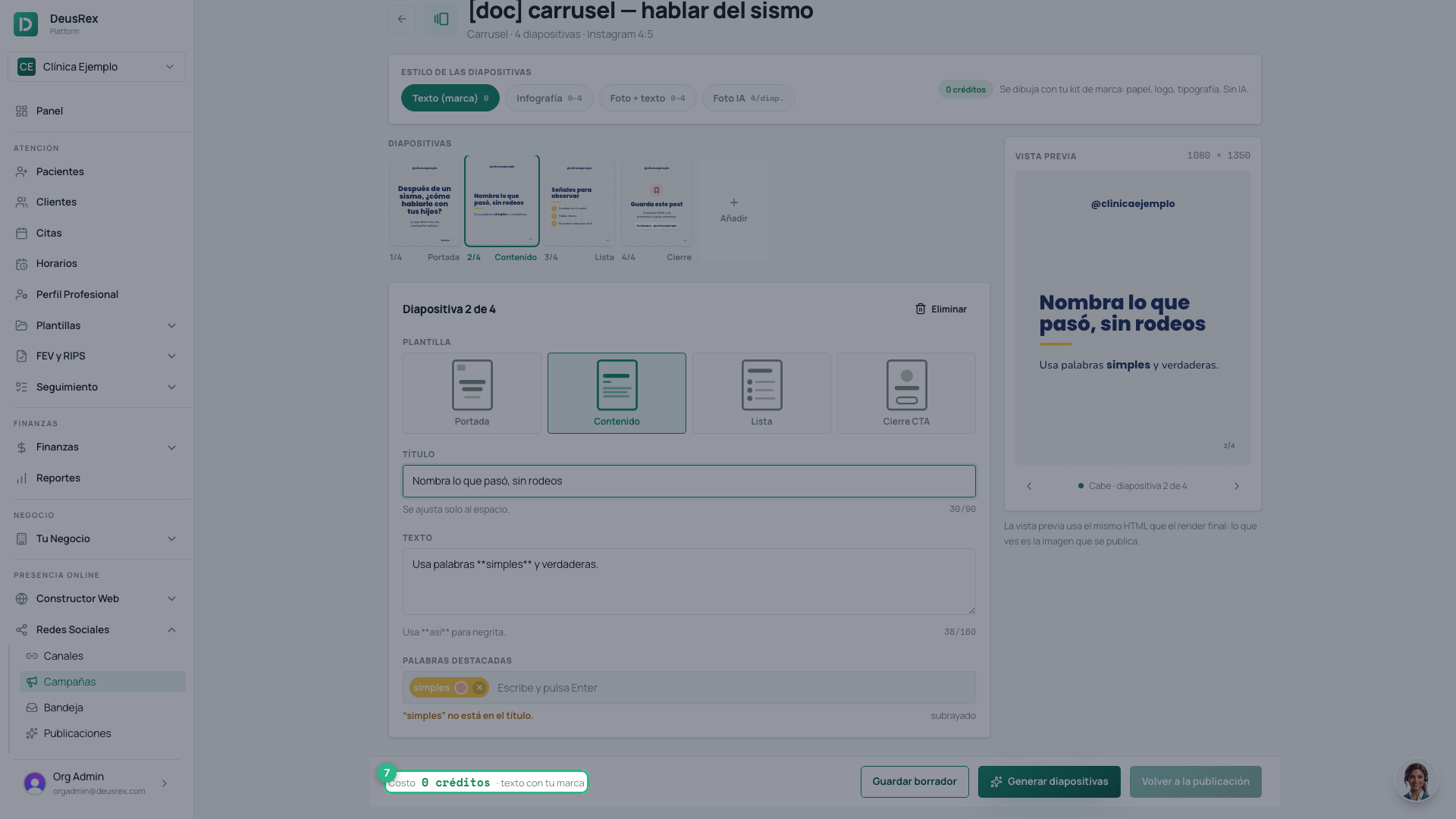
Check the preview and the cost. The preview is the same image that gets published; if it says Trim the text: it doesn’t fit, shorten it.
-
Press Generate slides (Generar diapositivas). In a few seconds they become the post’s images, in the order of the strip.
-
Press Back to the post (Volver a la publicación). The Instagram preview shows the carousel as it will go out.
To keep your changes without drawing anything, press Save draft (Guardar borrador).
Tips
- The cover carries the post’s hook: it is what stops the scroll. You can change it, but keep it short.
- Generating again does not charge again for an AI photo or illustration that already exists for the same description: fixing a typo is free.
- When you publish or schedule, Instagram and Facebook receive these slides as a carousel. See how to publish content.