How to dictate and use the AI scribe
On this page
- Before you start
- 1. Open the scribe
- 2. The first step: consent
- Read the script to the patient
- If they say no
- If nobody decides
- If you are dictating without the patient
- 3. Start listening to the appointment
- 4. Talk normally: the note writes itself
- 5. Terminar turno and the suggestions
- 6. Aplicar y cerrar el turno
- What each button does
- See the transcript later
- If it cuts out mid-appointment
- Credits
- In dentistry: the live scribe
- Each sentence goes to its place
- What is billed waits for your «Aceptar»
- What you typed is not overwritten
- Dictate into a section
- Por decidir and the summary
- The responsibility is not delegated
- Tip
The AI scribe listens to the whole appointment and writes the note while you talk: each sentence goes to its own field on its own — chief complaint, present illness, analysis, plan — and when you finish it suggests diagnoses, labs and prescriptions. None of it goes in unless you decide so.
It is the difference between working while looking at the patient and working while looking at the keyboard.
Before you start
Three things, and the scribe does not work if one is missing:
| Requirement | If it is missing |
|---|---|
| Your organization has it enabled | The Dictar con IA button does not appear. Not hidden — absent |
| Your profile is ReTHUS-verified | The button appears, and nothing saves |
| Your organization has AI credits | The transcription keeps going, but the scribe does not fill in the note for you and suggests no diagnoses, orders or prescriptions at the end. The panel tells you so |
It is the same scribe in every specialty. In a dental clinic it also fills in the odontogram and the periodontal chart; we explain that further down, in In dentistry: the live scribe.
1. Open the scribe
Open the consultation from the patient’s Línea de tiempo (timeline) and click Dictar con IA.
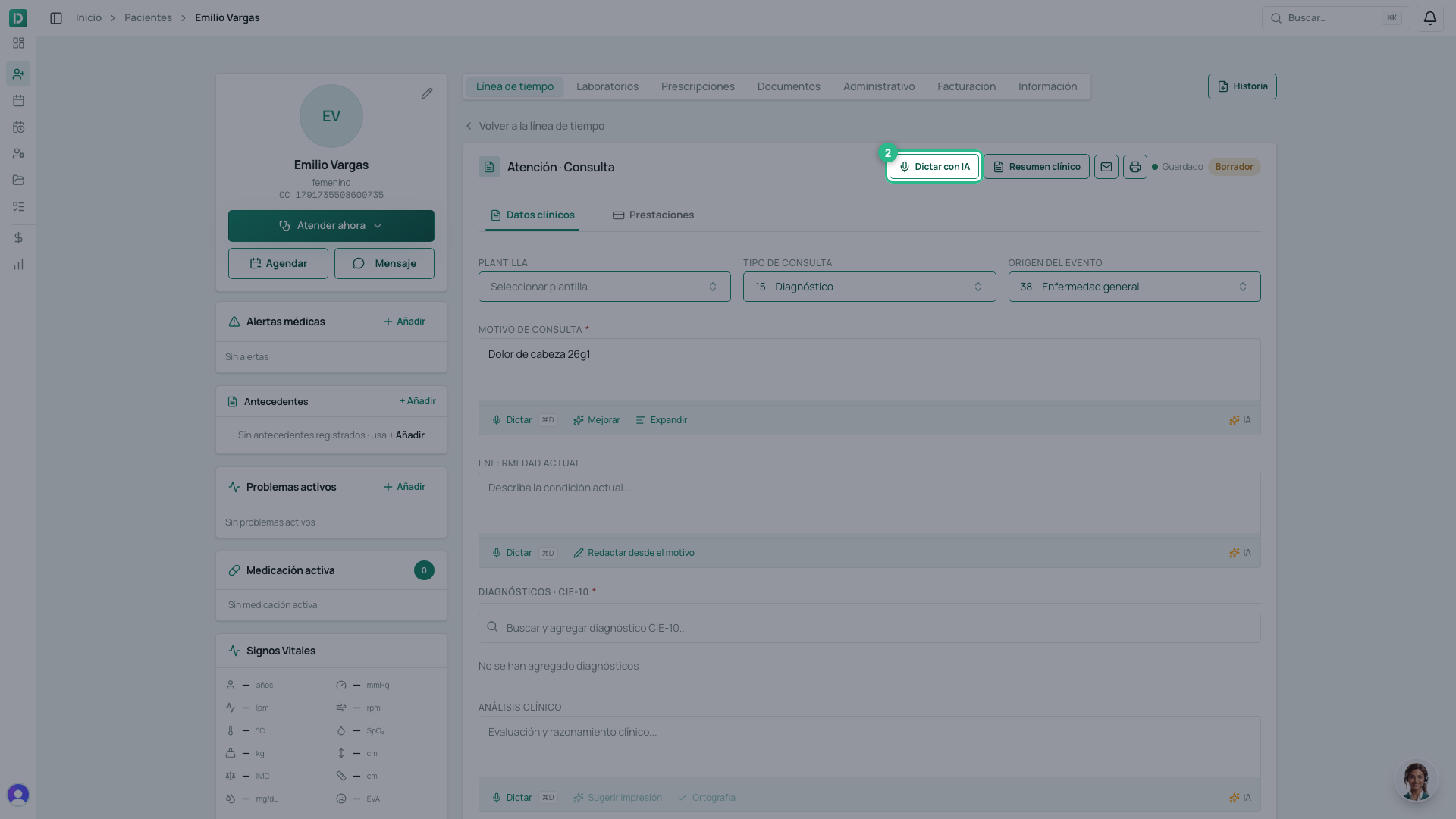
The Escriba (scribe) opens in a panel beside the consultation.
2. The first step: consent
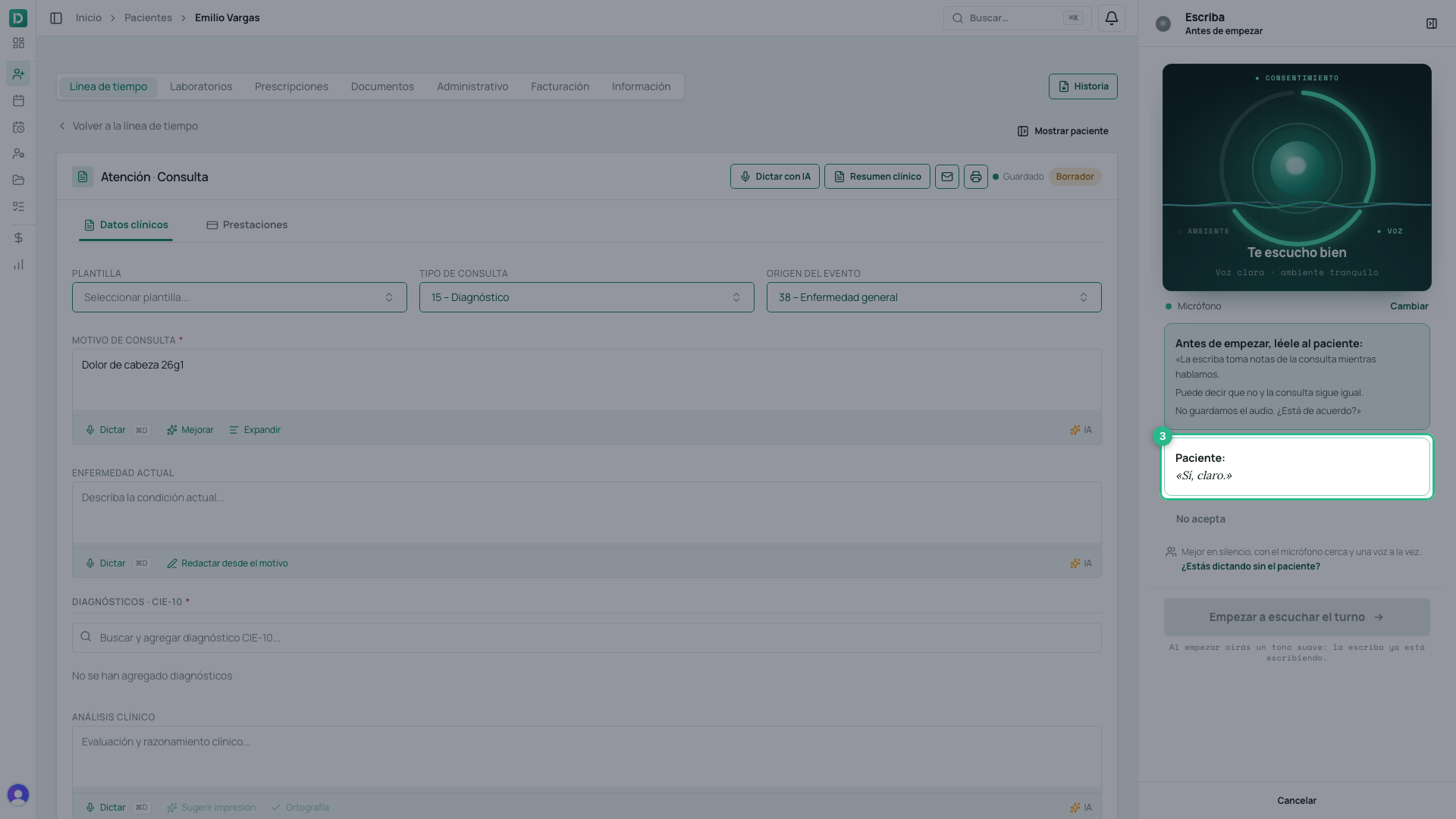
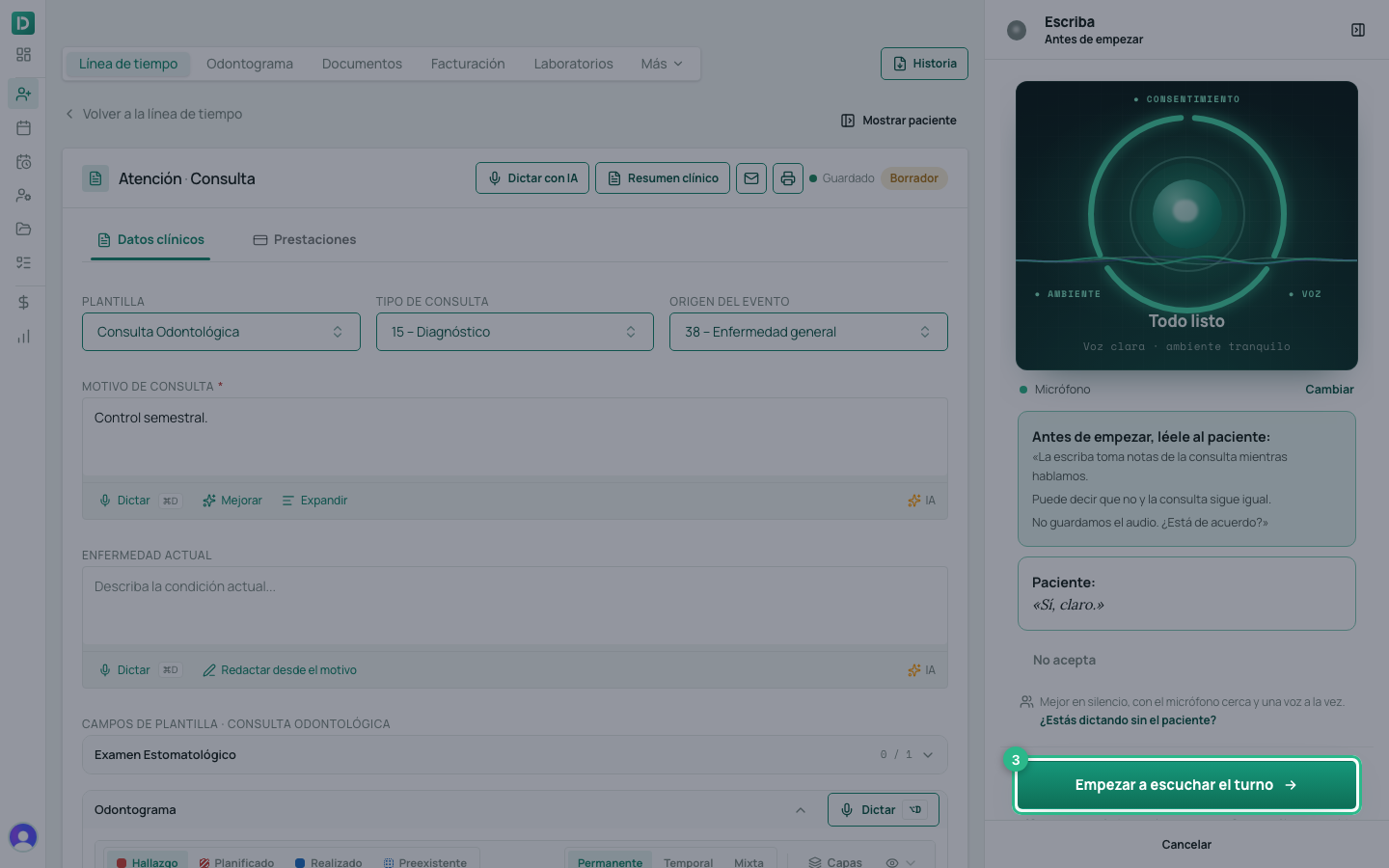
The microphone is already listening when the panel opens. At the top there is a ring of three arcs — Consentimiento · Voz · Ambiente (consent, voice, room) — that lights up on its own, without you touching anything:
| Arc | It lights up when… |
|---|---|
| Ambiente | The scribe measured the room and it is quiet |
| Voz | It hears you speaking at a normal volume |
| Consentimiento | The patient said yes |
Read the script to the patient
Below the ring is the script. Read it out loud:
«La escriba toma notas de la consulta mientras hablamos. Puede decir que no y la consulta sigue igual. No guardamos el audio. ¿Está de acuerdo?» (The scribe takes notes of the consultation while we talk. You can say no and the consultation stays the same. We do not keep the audio. Do you agree?)
When the patient answers — «Sí, claro» (yes, of course) — the scribe quotes their answer on screen (Paciente: «Sí, claro.») and the Consentimiento arc closes. That quote is the evidence: it is saved with the session, in their own words.
This is not paperwork. Recording a patient without their authorisation is processing sensitive data with no legal basis (Ley 1581). What is said before they agree is transcribed to show it on screen, but it is not saved, does not reach the assistant that writes the note, and does not go into the note.
If the patient nodded or the scribe did not catch it, click Confirmar: el paciente aceptó (confirm: the patient agreed): the yes is recorded under your name.
If they say no
Click No acepta (does not agree). The scribe closes and nothing that was said is saved: no audio, no transcript. Only a record of the refusal remains — who recorded it and when, with no content. The consultation carries on as usual, by hand.
If nobody decides
The first step waits 1:30. If in that time you neither start nor click No acepta, it closes on its own — Pasó 1:30 sin respuesta · no se guardó nada (1:30 passed with no answer · nothing was saved) — and you can Volver a intentar (try again).
If you are dictating without the patient
When the appointment has already ended — more than 15 minutes past its end time — or the consultation has been open for more than half an hour with no appointment, the scribe understands that you are dictating alone: it says Dictando sin el paciente · no se pide consentimiento (dictating without the patient · no consent asked), the ring has two arcs (Voz and Ambiente) and there is no script. If the scribe thought the patient was there and they are not, click ¿Estás dictando sin el paciente? (are you dictating without the patient?).
If another voice joins while you dictate, the scribe asks Escuché otra voz. ¿Está el paciente? (I heard another voice. Is the patient here?) and the Consentimiento arc comes back: what that voice said is not saved until the patient agrees. If you click No acepta, that voice’s words are discarded and your dictation carries on.
The same screen reminds you of what decides transcription quality: a quiet room, a close microphone, one voice at a time. If the microphone is not the one you want, click Cambiar (change).
3. Start listening to the appointment
With the ring closed, click Empezar a escuchar el turno (start listening to the appointment). It is the only click: you will hear a soft tone and the scribe is already writing. Work as you always do; do not talk to the computer.
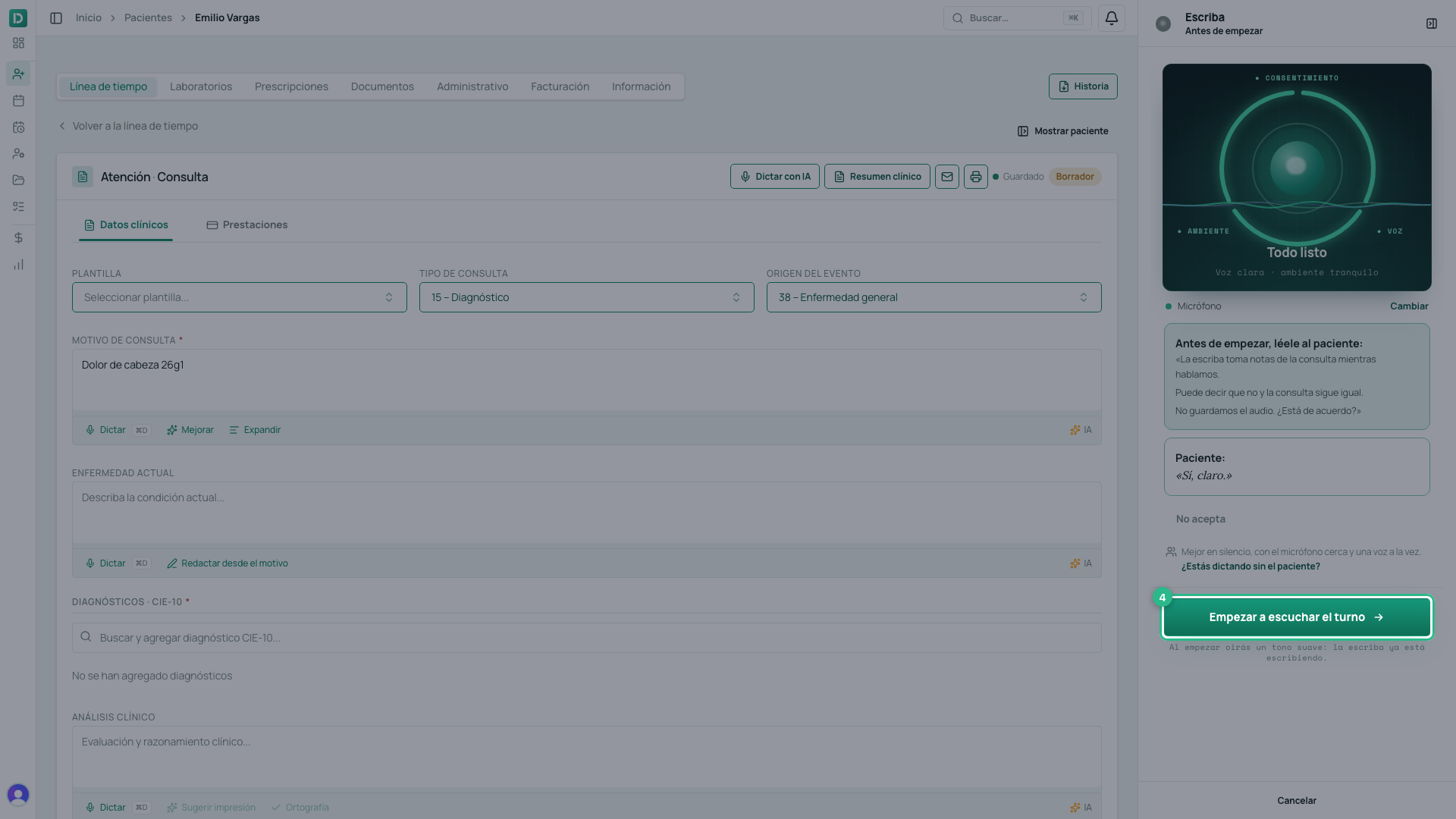
The panel shows Escuchando (listening), who is speaking, and the consent it recorded — Consentimiento hablado · «Sí, claro.» (spoken consent).
4. Talk normally: the note writes itself
Each sentence appears in the panel with who said it (Profesional or Paciente) and where it went: Nota · Enfermedad actual (present illness), Nota · Análisis clínico (clinical analysis). Below it, it says Escrito por la escriba (written by the scribe) and has Deshacer (undo).
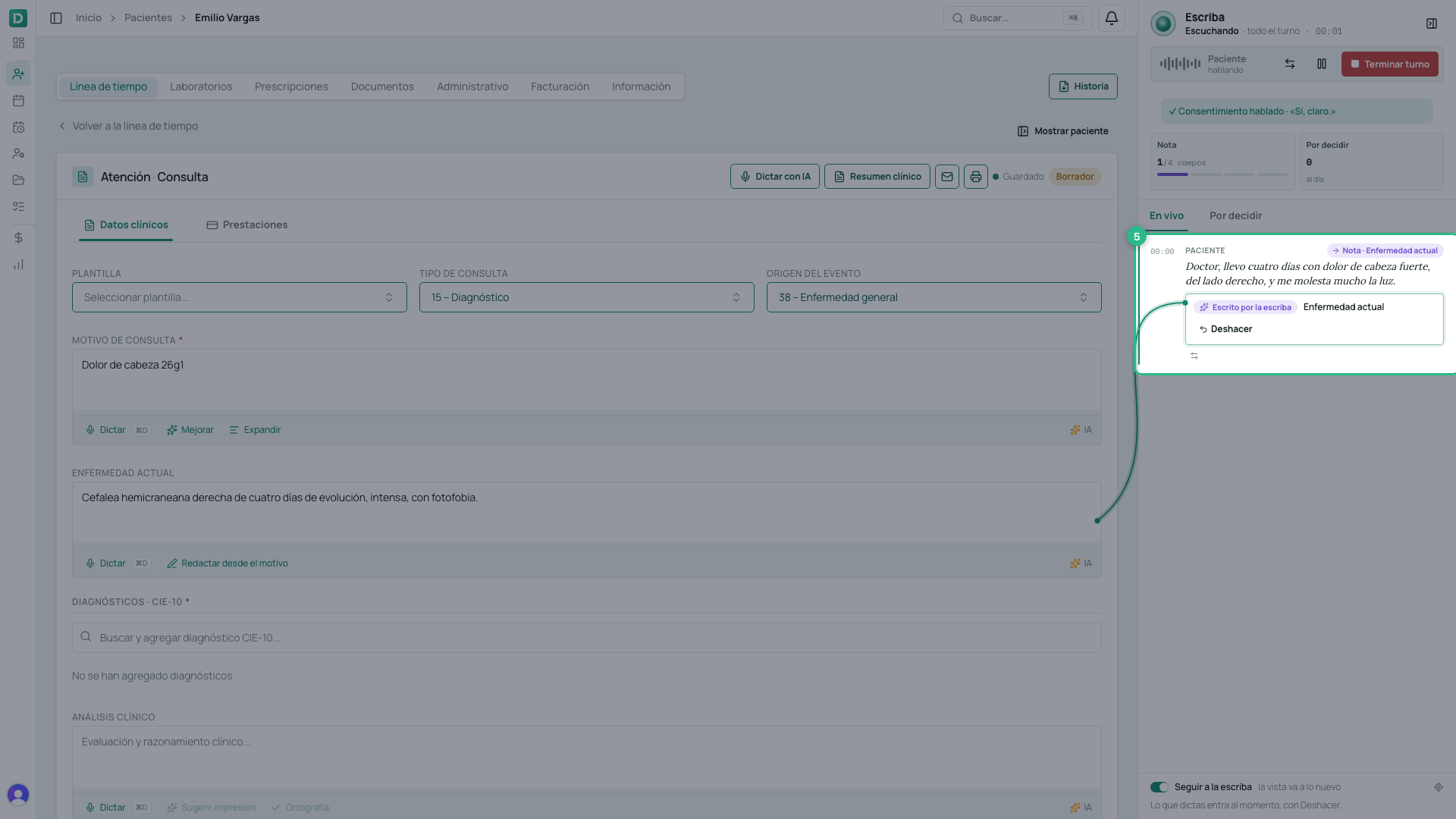
At the same time the text goes into the consultation’s field, which saves on its own. The scribe fills in Motivo de consulta, Enfermedad actual, Análisis clínico and Plan de tratamiento, and the Nota counter at the top of the panel says how many of those four fields already have something.
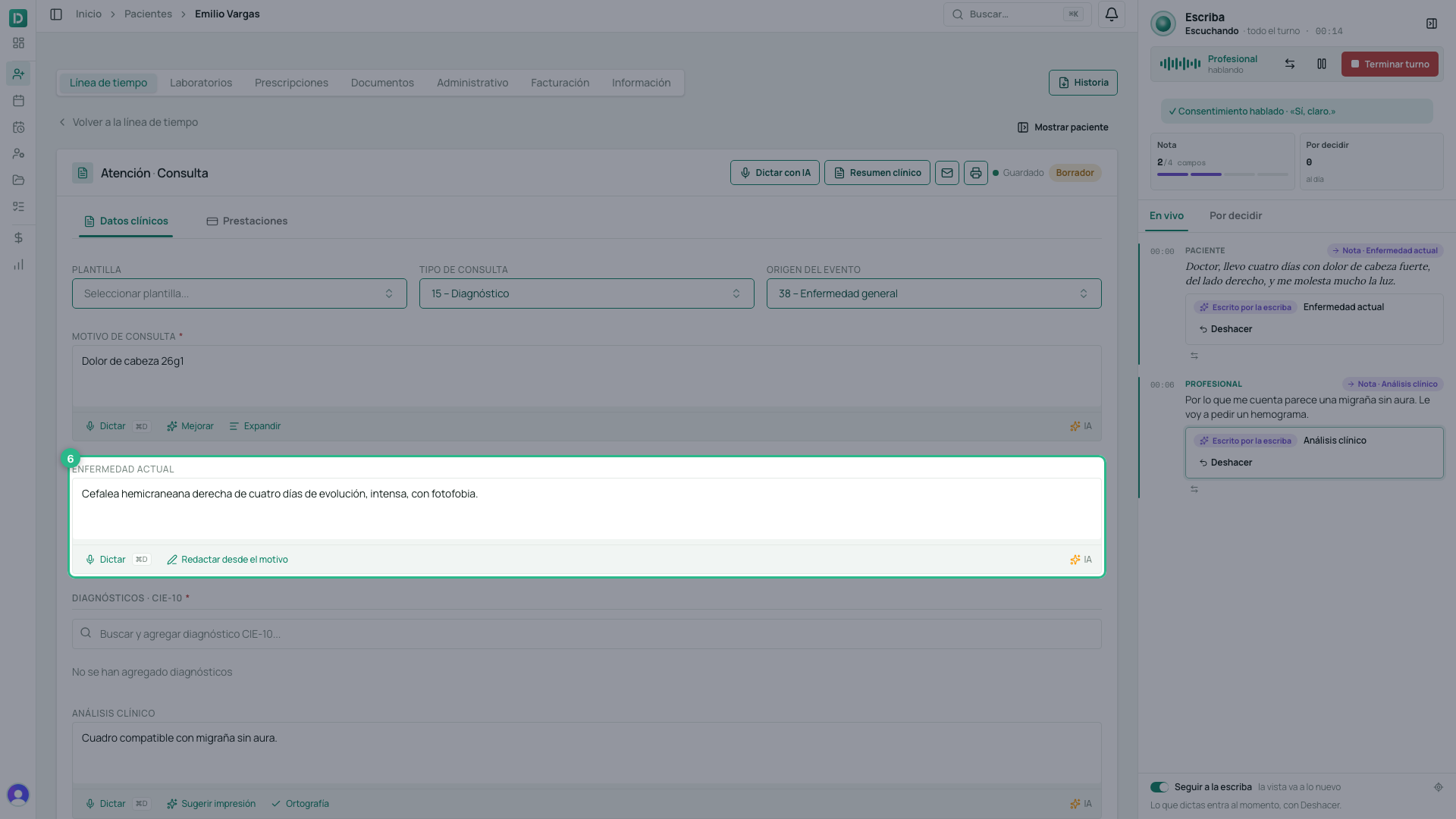
- If something came out wrong, click Deshacer on that sentence, or fix it in the field: it is your consultation.
- If the consultation uses a template, its fields fill in on their own too. A field the scribe filled is marked Escriba, with Deshacer, until you change it yourself.
- If it mixed up who is speaking, click Intercambiar roles (⇄, swap roles): at the top of the panel, or beside a sentence.
- Pausar (pause) stops sending audio — paused time is not charged — and Reanudar (resume) carries on with the same appointment.
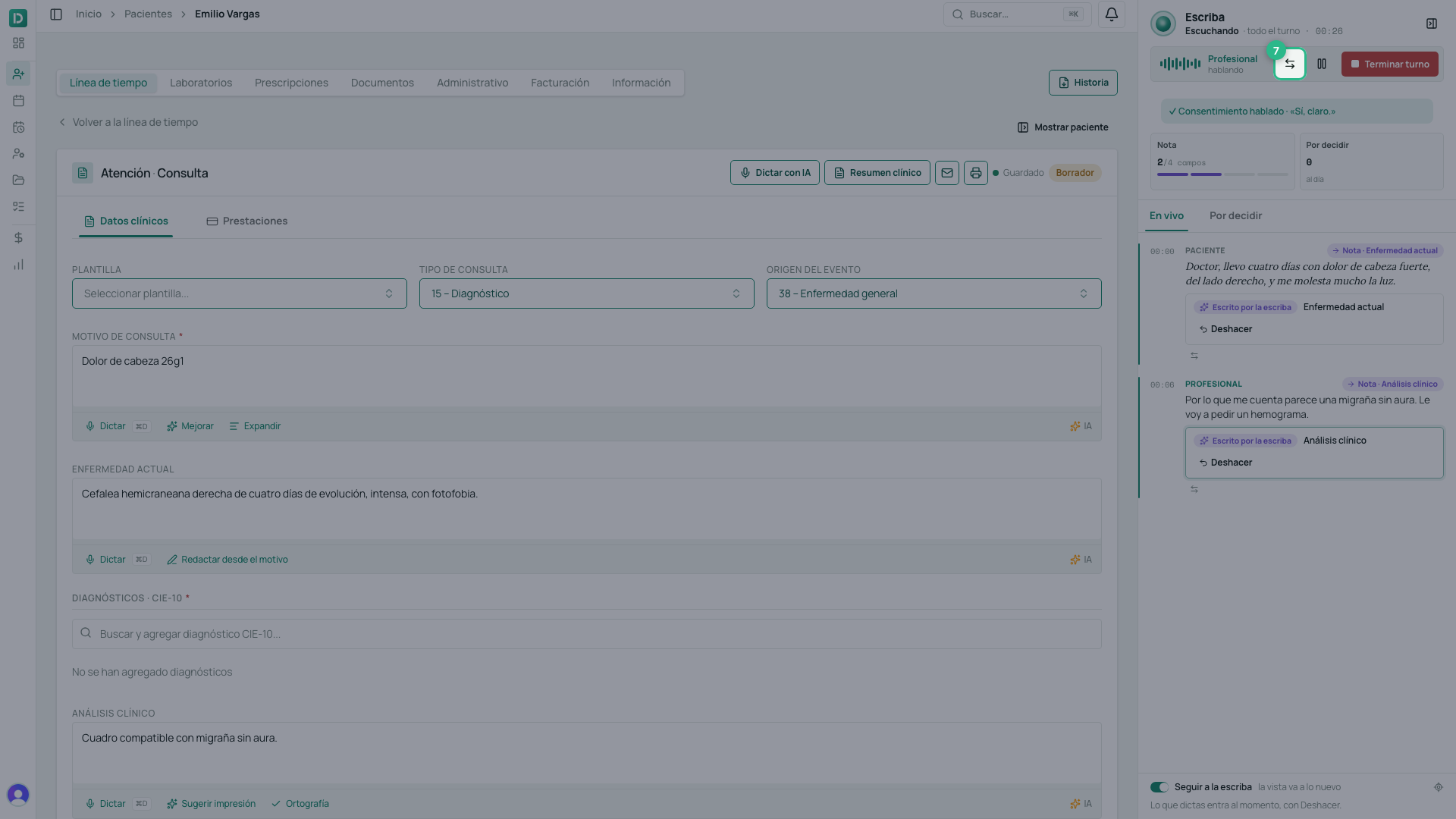
5. Terminar turno and the suggestions
When the consultation ends, click Terminar turno (end appointment). The scribe stops listening and, from what was said after the consent, prepares what is missing: diagnoses with their ICD-10 code, lab orders and prescriptions. If it notices something you should not overlook, it shows it as an alert.
All of it lands in Sugerencias (suggestions), and waits there: nothing goes into the attention until you click Agregar (add). The × discards it.
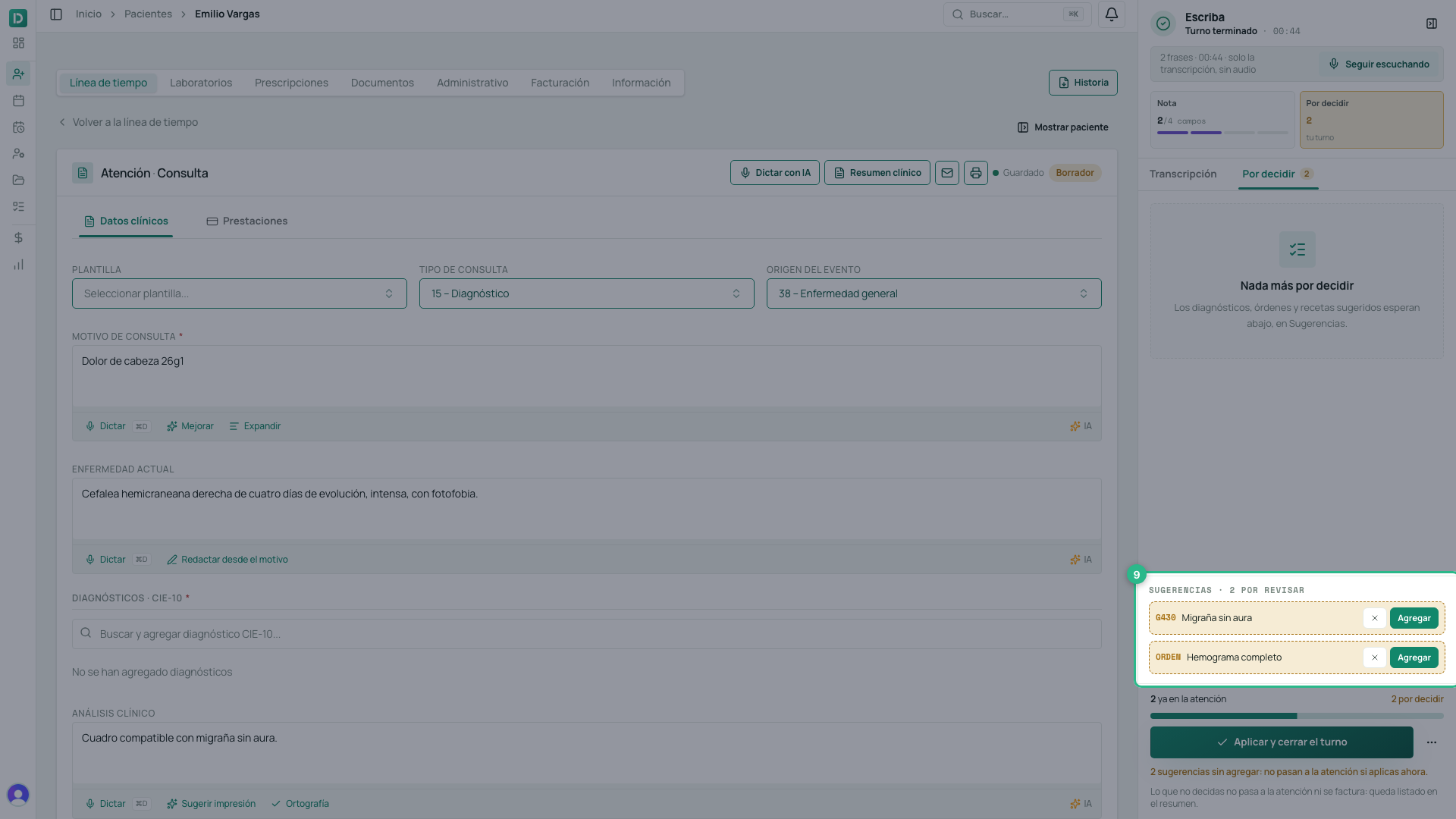
Click Agregar on what you confirm. A diagnosis goes into the consultation at that moment and the suggestion turns Agregada (added); the orders and prescriptions you added are created when you apply.
If you missed something, Seguir escuchando (keep listening) opens the microphone again on the same appointment.
6. Aplicar y cerrar el turno
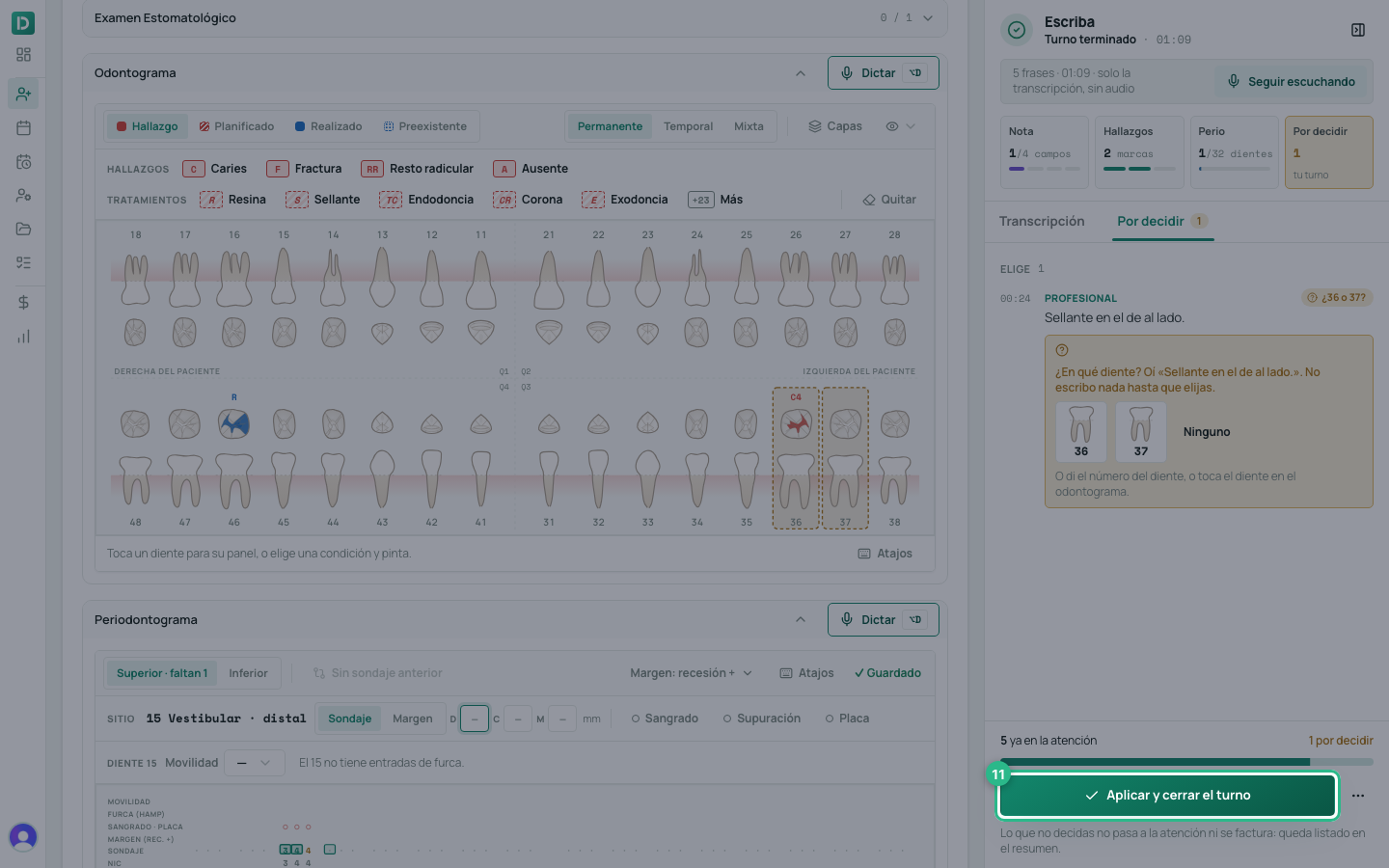
Click Aplicar y cerrar el turno (apply and close the appointment). If a suggestion is still not added, the panel warns you first: no pasa a la atención si aplicas ahora (it does not go into the attention if you apply now).
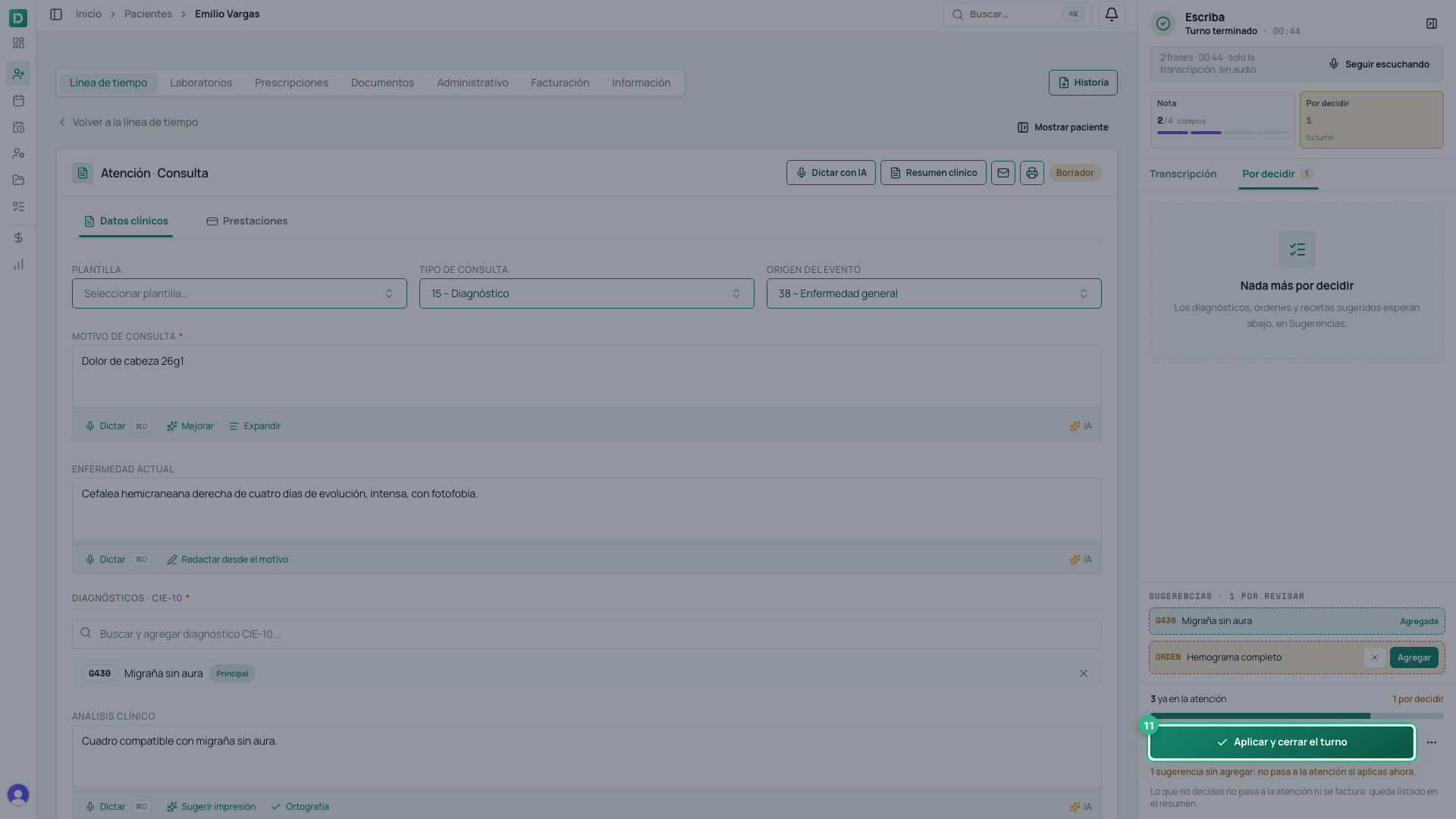
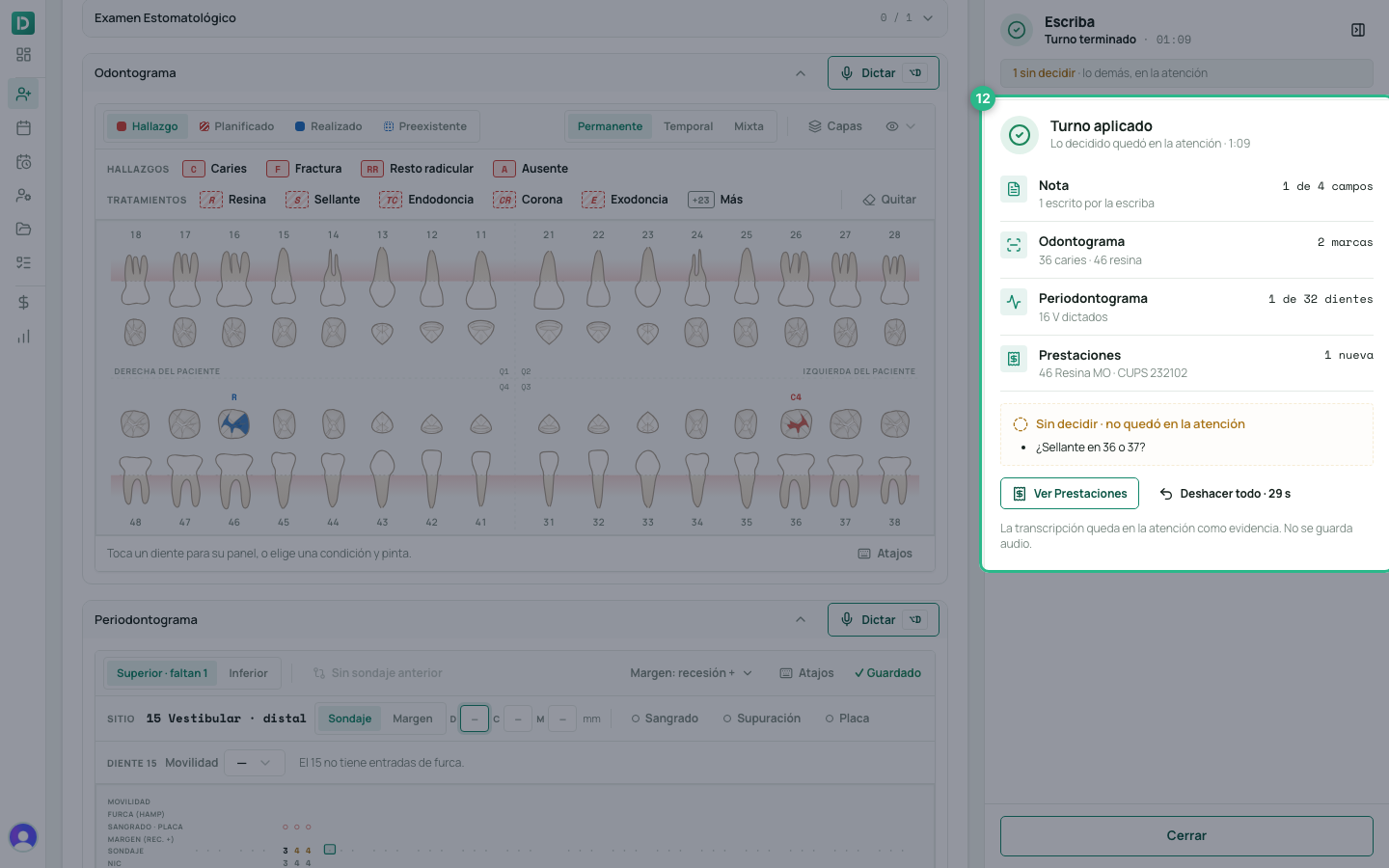
Turno aplicado (appointment applied) appears: what went into the attention — the note, the diagnoses, the orders and prescriptions — and, separately, what you did not decide, under Sin decidir · no quedó en la atención (undecided · not in the attention). If you want it, Revisar sugerencias (review suggestions) takes you back to them. For 30 seconds you have Deshacer todo (undo all).
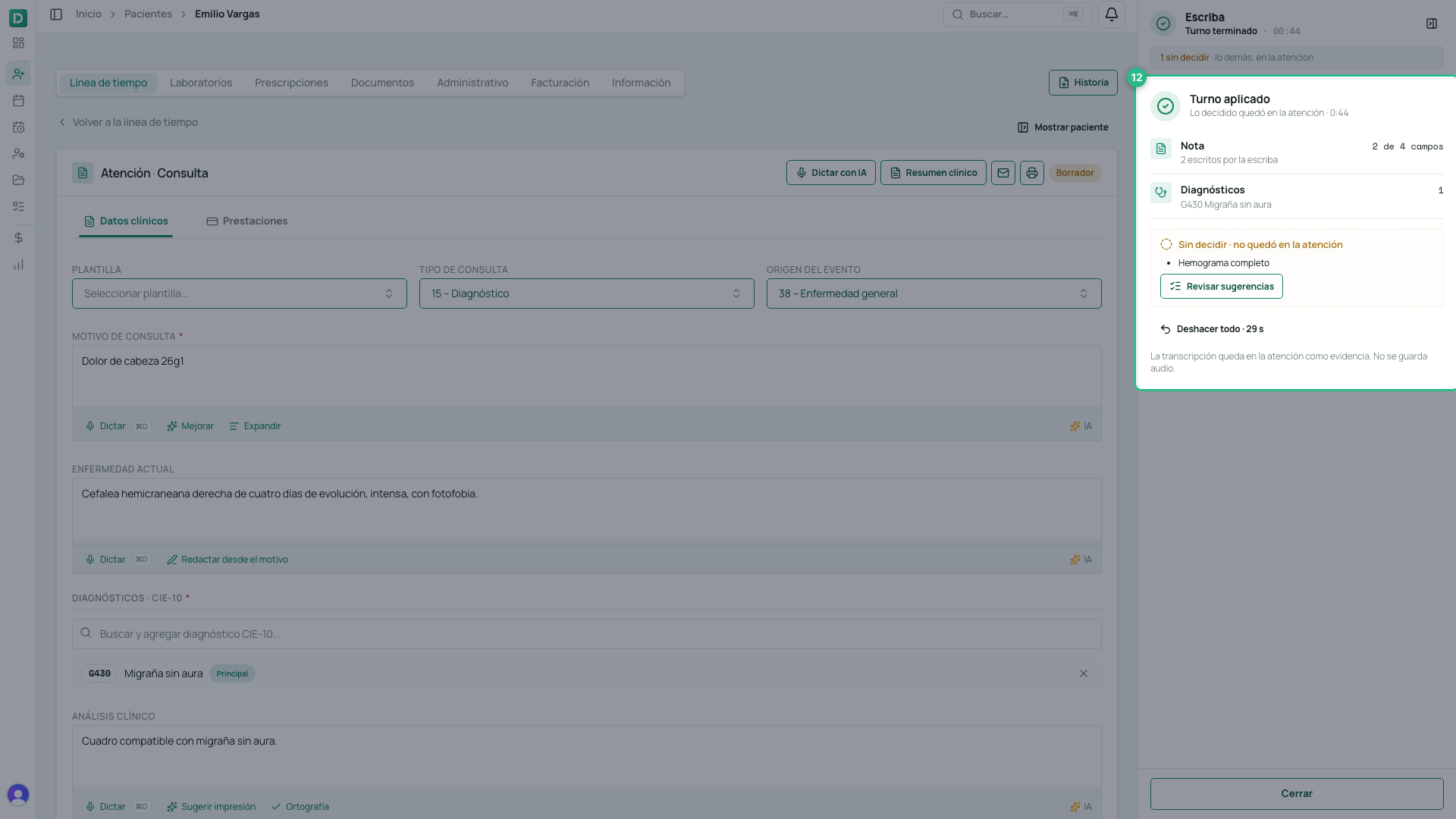
From there it is still your consultation: adjust whatever is needed, add the prestaciones and sign. Click Cerrar (close) to close the panel.
What each button does
- Cancelar, on the first step, closes without starting.
- Pausar / Reanudar stops and resumes the audio, on the same appointment.
- Intercambiar roles fixes who is the professional and who is the patient.
- Terminar turno stops listening and prepares the suggestions.
- Seguir escuchando opens the microphone again on the same appointment.
- Agregar moves a suggestion into the attention; the × discards it.
- Aplicar y cerrar el turno closes the appointment with what you decided.
- Cerrar sin aplicar (close without applying), in the ⋯ menu beside it, closes without applying.
- Deshacer todo, on the summary, removes what the scribe wrote in this appointment. It lasts 30 seconds.
See the transcript later
In the consultation, each listening stays as Escriba · consulta (or Escriba · dictado) with how long it lasted, how many voices there were and the consent. Ver transcripción (see transcript) opens it: every sentence with who said it and which field it went to. If the roles ended up crossed, you can also Intercambiar roles there.
If it cuts out mid-appointment
If you reload the page or the connection drops, clicking Dictar con IA again makes the scribe say Este turno quedó abierto (this appointment was left open) and offer Retomar turno (resume appointment): it comes back with what it had already understood, without repeating what is already in the attention.
Credits
Listening is charged per minute, and what the scribe understands live is charged for what it actually uses. If the clinic runs out of credits mid-appointment, the transcription keeps going: it only stops filling in the note for you, and the panel tells you so.
In dentistry: the live scribe
If your clinic is a dental one, the same scribe also fills in the odontogram and the periodontal chart: each sentence you dictate goes to its place on its own — the odontogram, the periodontal chart or the note — without you touching the keyboard. The consent, Empezar a escuchar el turno, Terminar turno and Aplicar y cerrar el turno work just as above.
Each sentence goes to its place
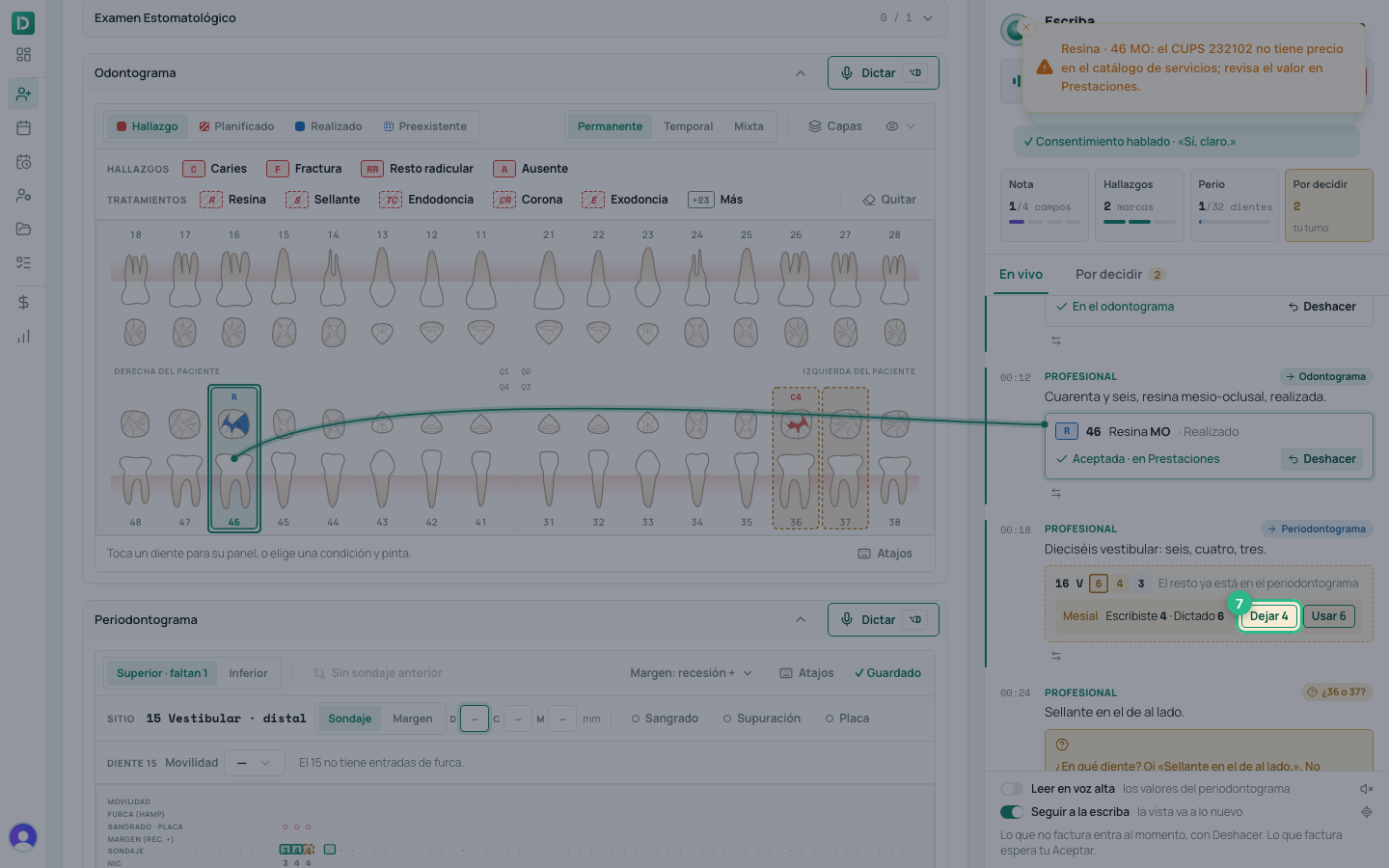
Dictate the way you would talk to your assistant: «Treinta y seis: caries oclusal, ya en dentina, ICDAS cuatro» (36: occlusal caries, into dentine, ICDAS 4). The sentence appears in the panel with its destination (Odontograma, Periodontograma or Nota) and what it did: the finding is already on the tooth, with Deshacer (undo) next to it.
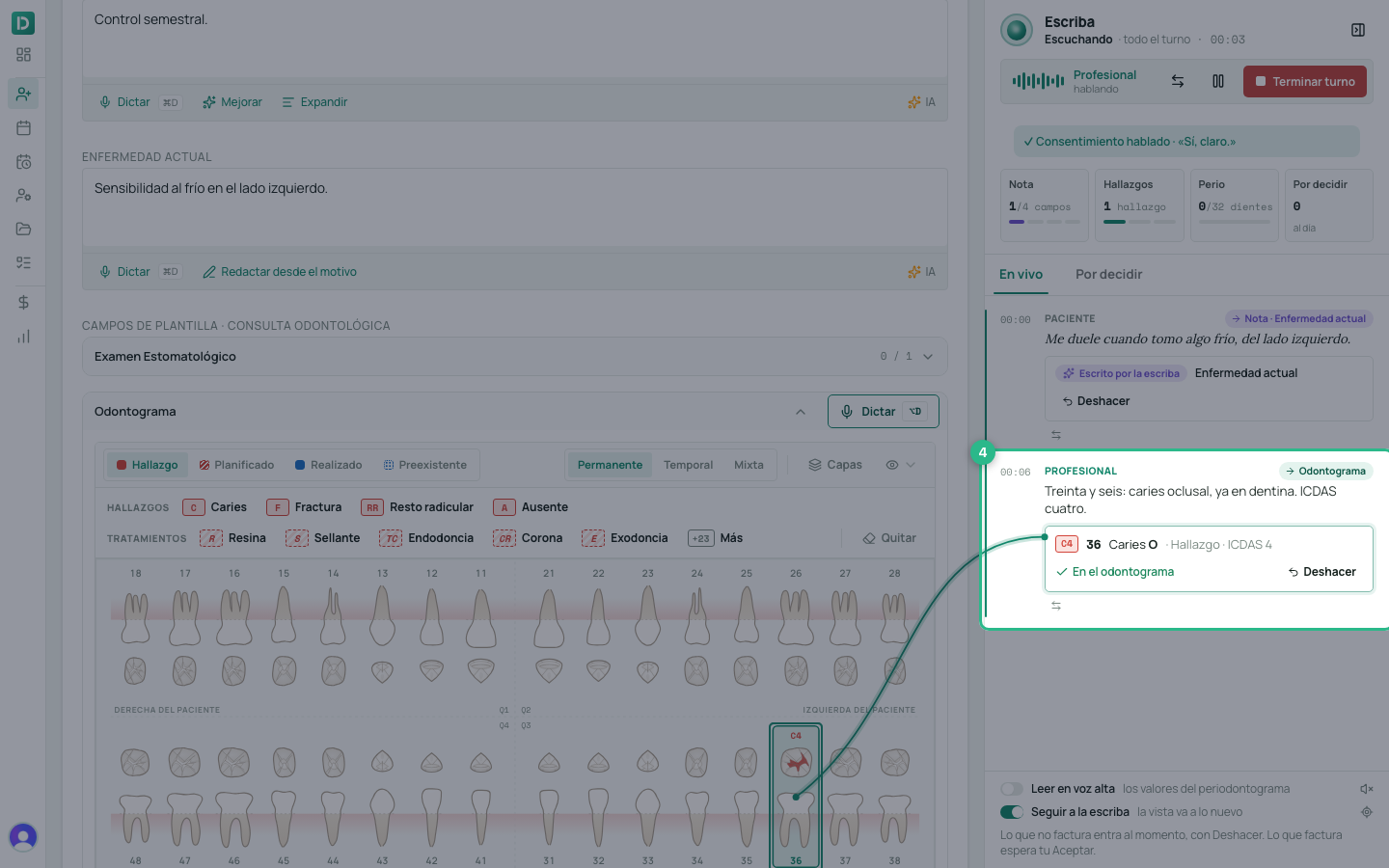
- What is not billed goes in at once: findings, plans, probing depths and the note’s text. If something came out wrong, click Deshacer, or say it: «borra eso» (delete that), «no, el treinta y siete» (no, 37). The correction also reaches marks that were already on the odontogram before you started.
- If it is unsure, it asks: «¿36 o 37?», with the teeth to choose from. It writes nothing until you choose.
What is billed waits for your «Aceptar»
A completed treatment creates a prestación, so the scribe does not record it on its own: it leaves it dotted on the tooth and asks you to Aceptar (accept). Only then is the prestación created with its CUPS code.
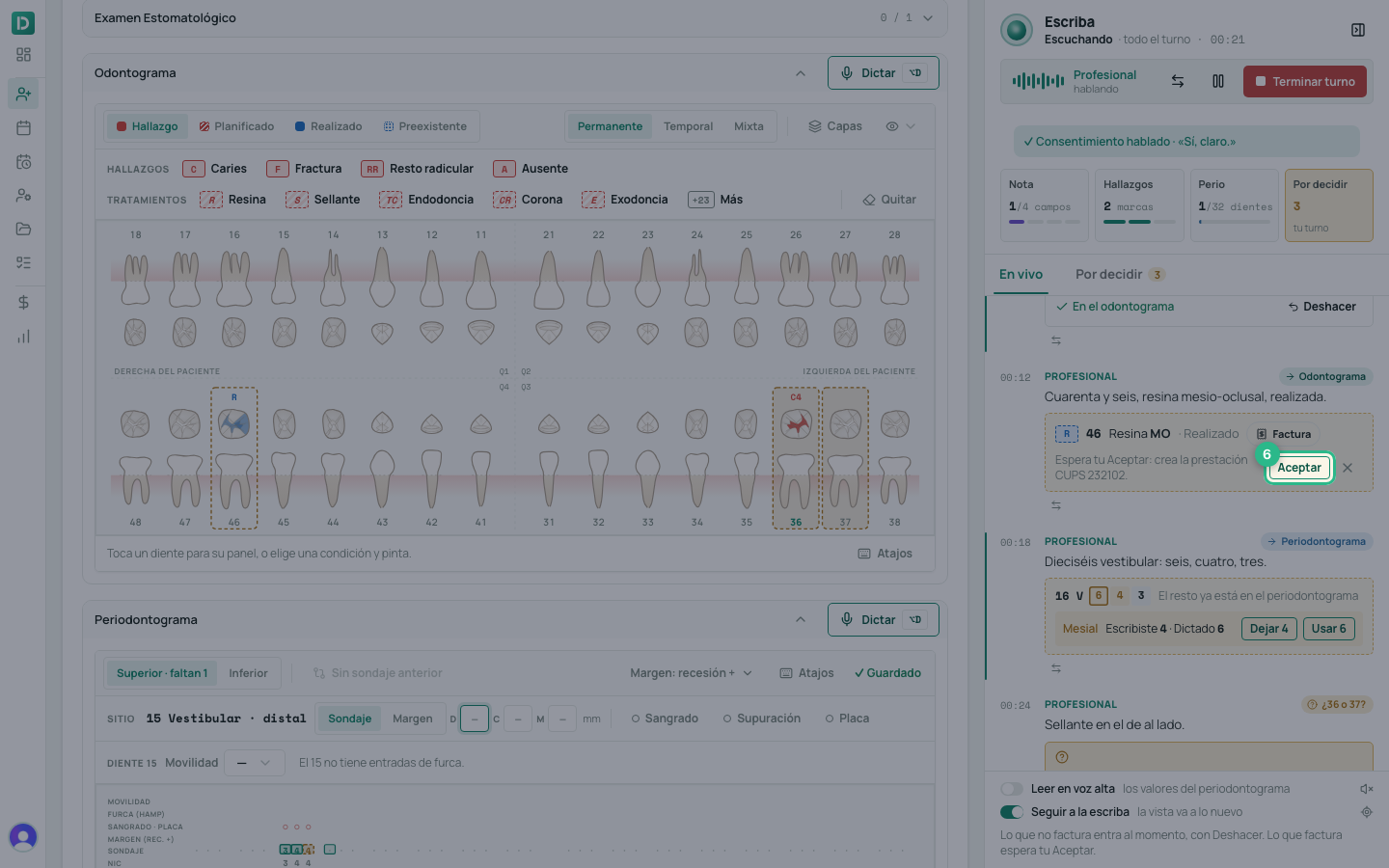
If the clinic requires a signed consent for that treatment, it asks for it first; you can also leave it planned.
What you typed is not overwritten
If you typed a value by hand and then dictate a different one, the scribe does not change it: it shows you both — Escribiste 4 · Dictado 6 (you typed 4 · dictated 6) — and you choose Dejar 4 (keep 4) or Usar 6 (use 6). The same goes for the note: a field you edited is yours.
Dictate into a section
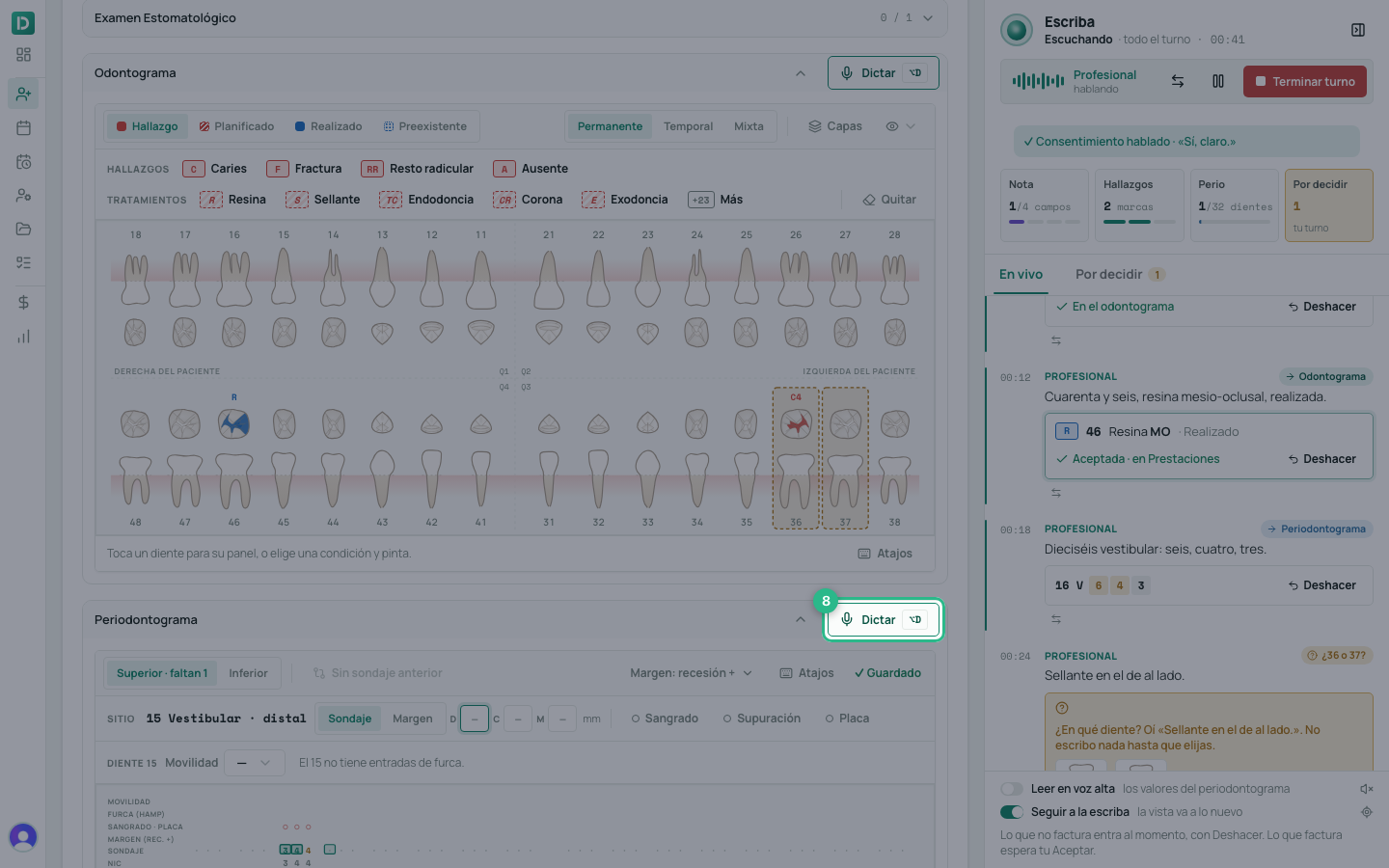
Each section of the odontogram and the periodontal chart has its own Dictar button (or ⌥D, from anywhere in the consultation: it takes the section you have on screen). With the scribe listening, it focuses the scribe on that section, so it understands teeth, surfaces and measurements better. Without the scribe, it dictates only into that section, without recording the appointment.
Por decidir and the summary
When you click Terminar turno, the Por decidir (to decide) tab leaves you only what needs you: what is billed, the questions, what clashes with what you typed, and the suggestions.
The Aplicar y cerrar el turno summary also counts the odontogram marks, the probed teeth and the new prestaciones. What you did not decide is not left drawn on the odontogram: it appears under Sin decidir · no quedó en la atención, and if you want it, you record it by hand.
The responsibility is not delegated
The AI proposes; you decide and you sign. Always review what the scribe wrote before closing the appointment: the professional owns the clinical record, and a diagnosis suggested by a machine is still yours once you add it.
Tip
What improves the result most is not the AI, it is the audio. A microphone half a metre away and one voice at a time beat any setting.