How to use the stage checklist
On this page
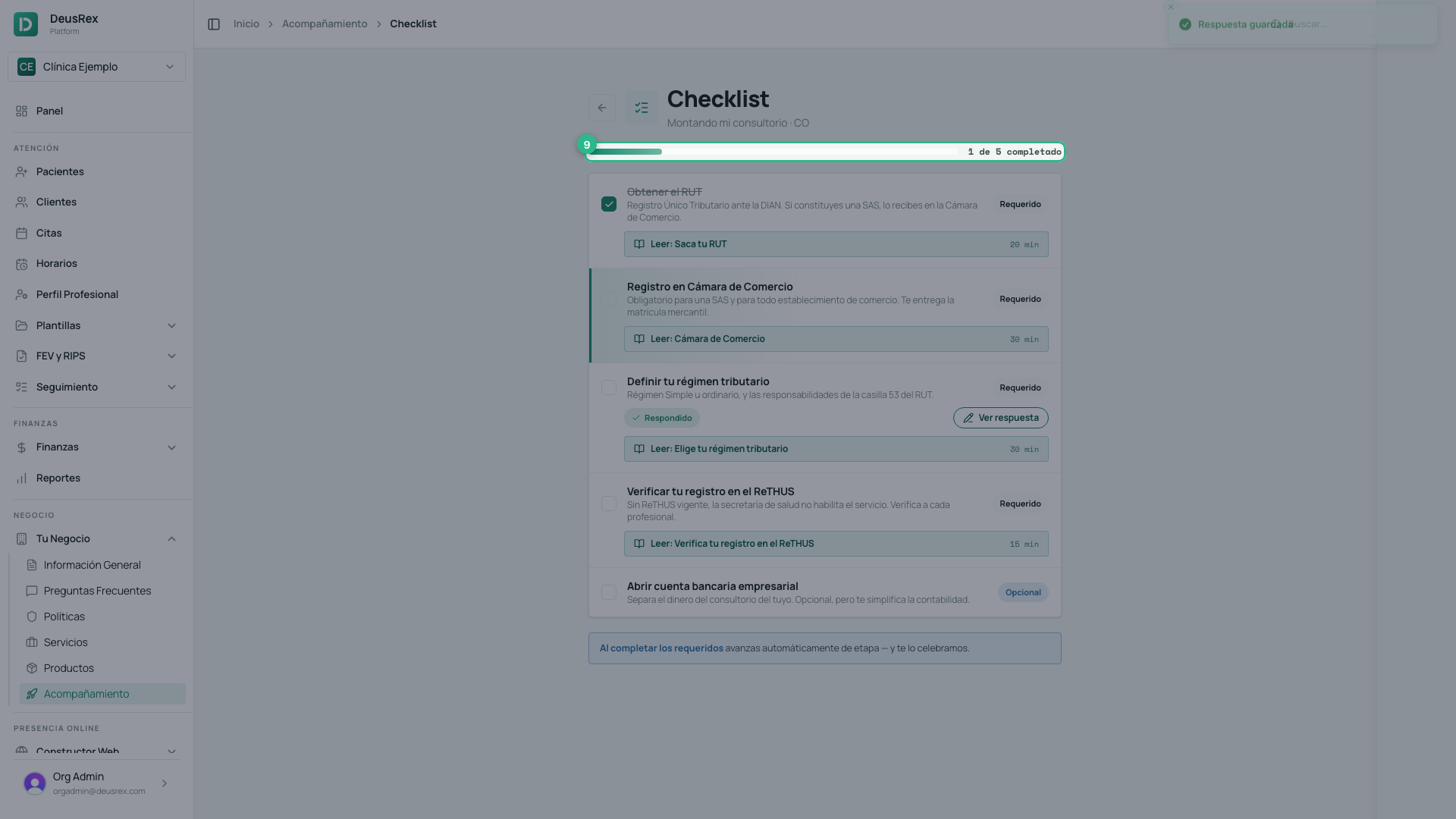
The Checklist in Companion gives you the concrete tasks for your current stage, so you know exactly what to do next.
Steps
- Open Your Business → Companion.
- On The Route, click Continue on your next step — that opens your stage’s Checklist.
- Review your stage’s tasks — each says whether it is Required or Optional. Tasks that ask for something of yours (your services, your break-even point, your tax regime) show Answer missing and an Answer button.
- When you complete one, tick its checkbox.
- Your progress (“X of Y completed”) updates at once.
Answering a step
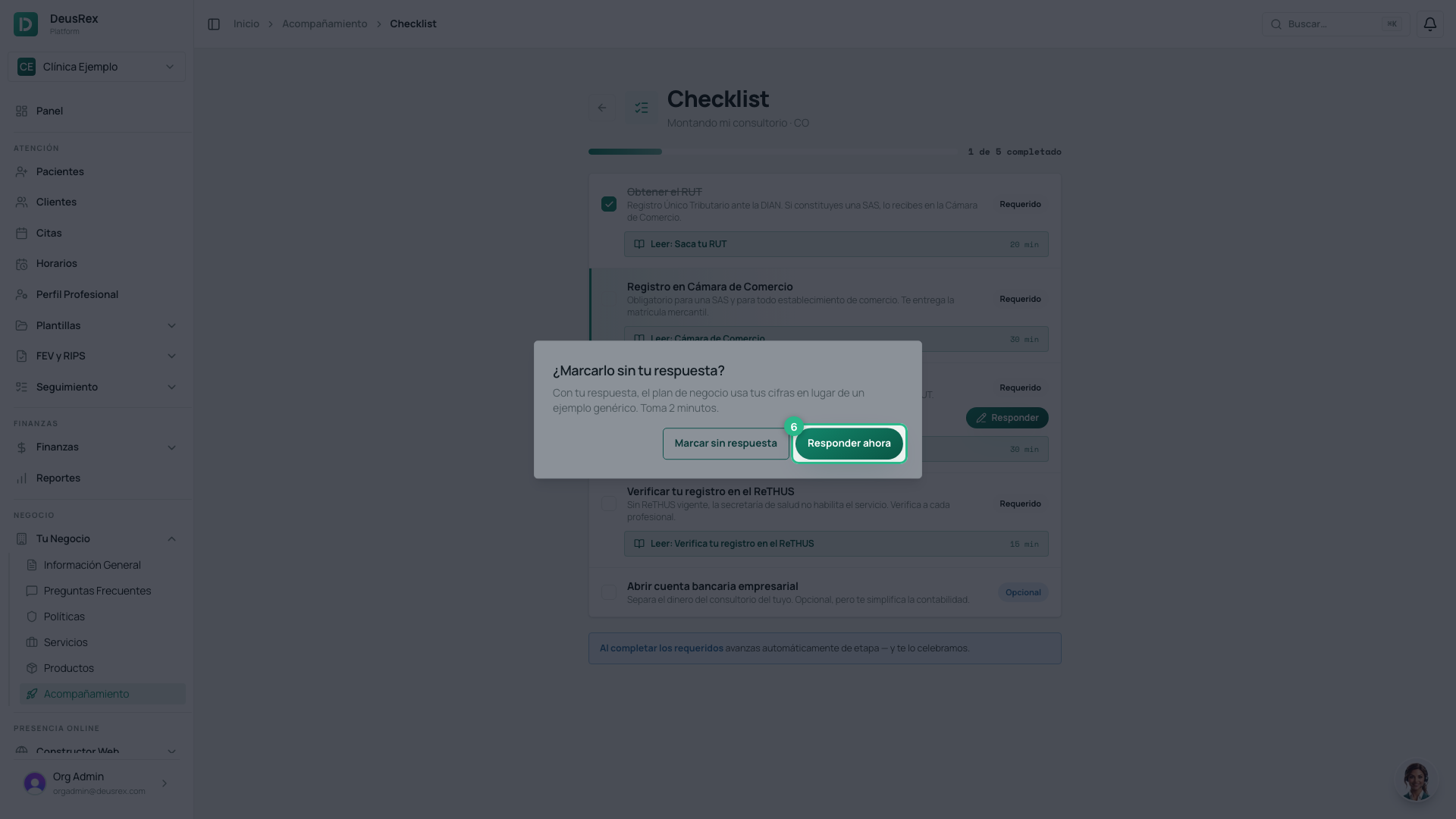
- On a task that says Answer missing, click Answer — or tick its checkbox: the app asks Tick it without your answer? and you click Answer now. To do it later, Tick without answer ticks it anyway; it never blocks you.
- Fill in the step’s short form.
- Click Save answer. The task shows Answered.
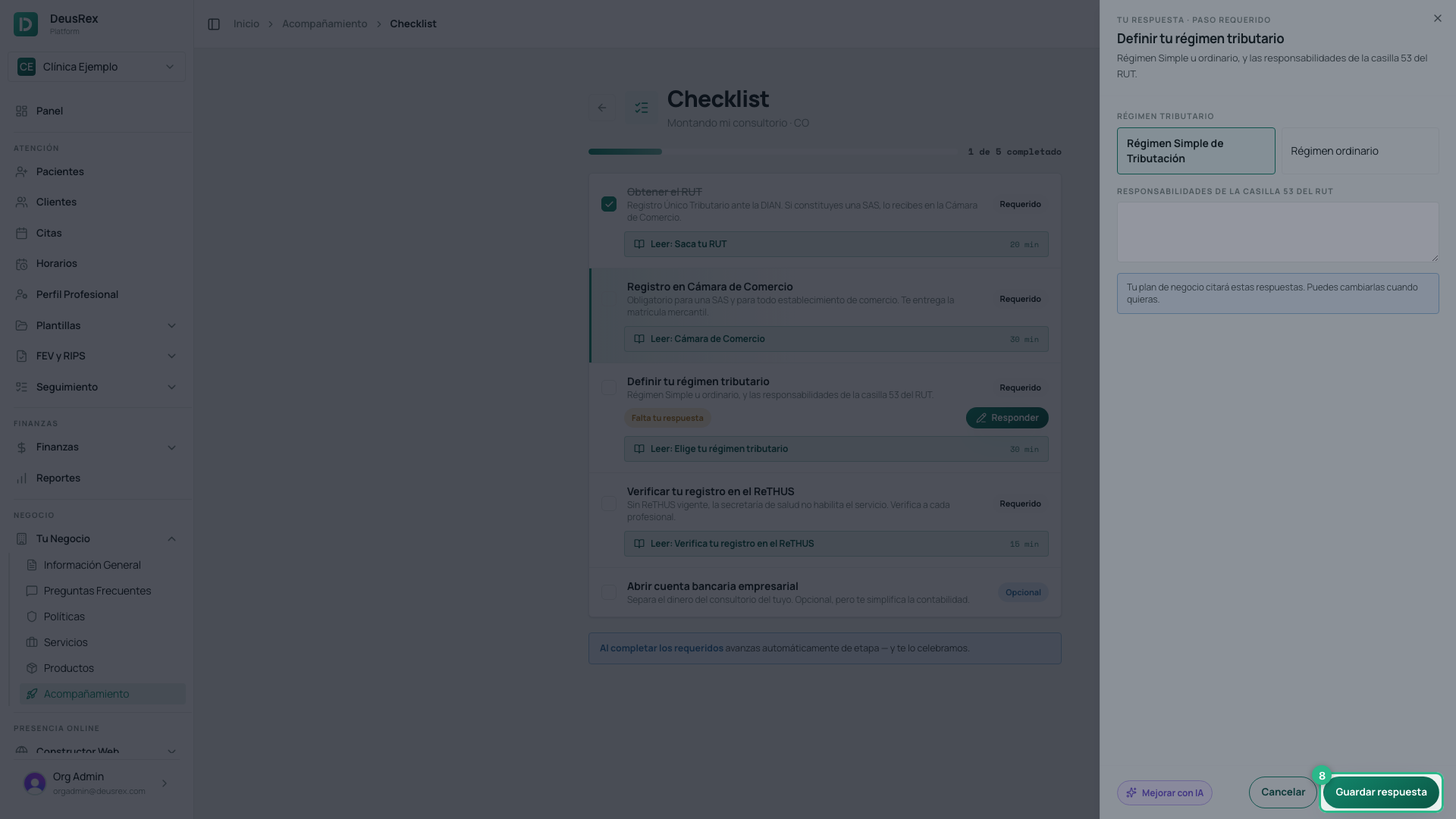
Your answers feed your business documents: the business plan quotes your services, your figures and your regime instead of a generic example. You can come back to a step and click View answer to change it whenever you like. In text fields, Improve with AI suggests a clearer version of what you wrote (it uses AI credits).
Some tasks are done in another section of the app (create a service, set up schedules): complete them there and come back to tick them here.