How to view and upload patient documents
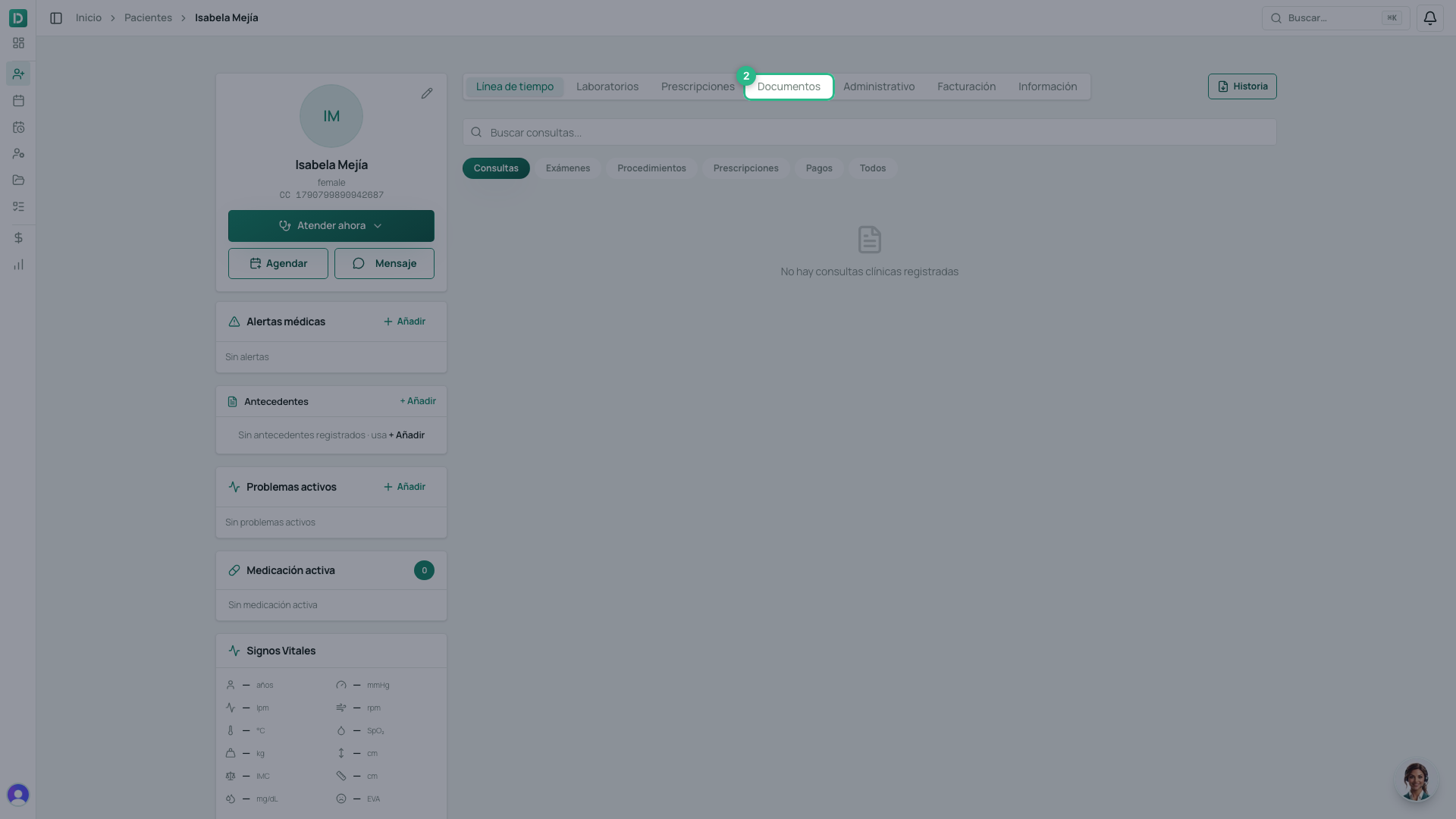
The patient’s Documentos tab gathers three different things on one screen. It helps to know which is which, because they are created in different places.
The three lists
| List | What it holds | Where it is created |
|---|---|---|
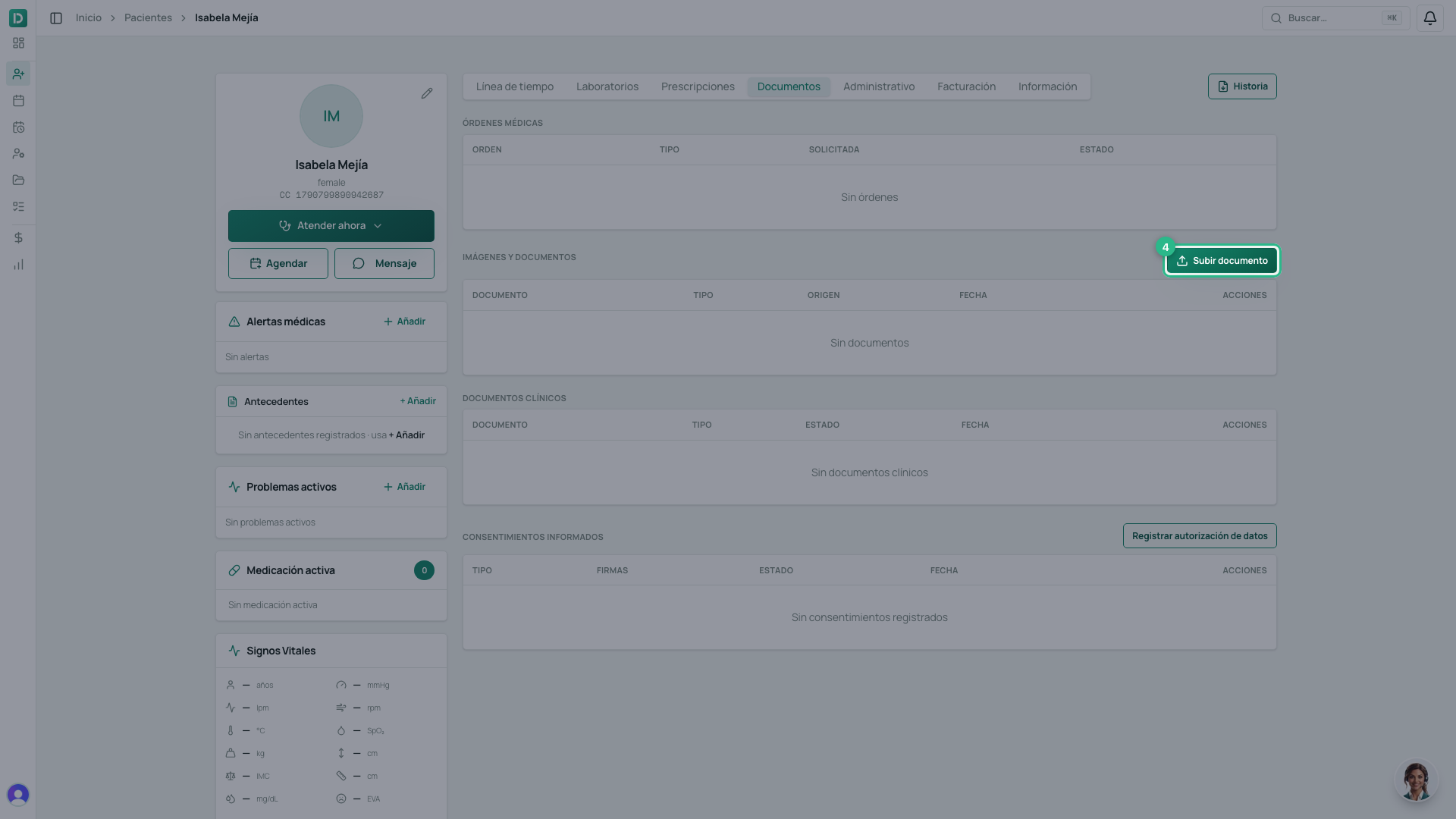
| Images and documents | Files you upload (an outside lab report, a referral, a photo) and deliverables: what you owe the patient after an appointment, like a report | Right here; deliverables, when you book a service that has them (how) |
| Documentos clínicos | The certificado médico and the constancia de asistencia | Inside a consulta |
| Consentimientos informados | What the patient signed | At booking, or in the consulta |
Uploading a file
-
Open the patient’s profile and go to the Documentos tab.
-
Click Subir documento and choose the file.
-
It appears in the list, under its name.
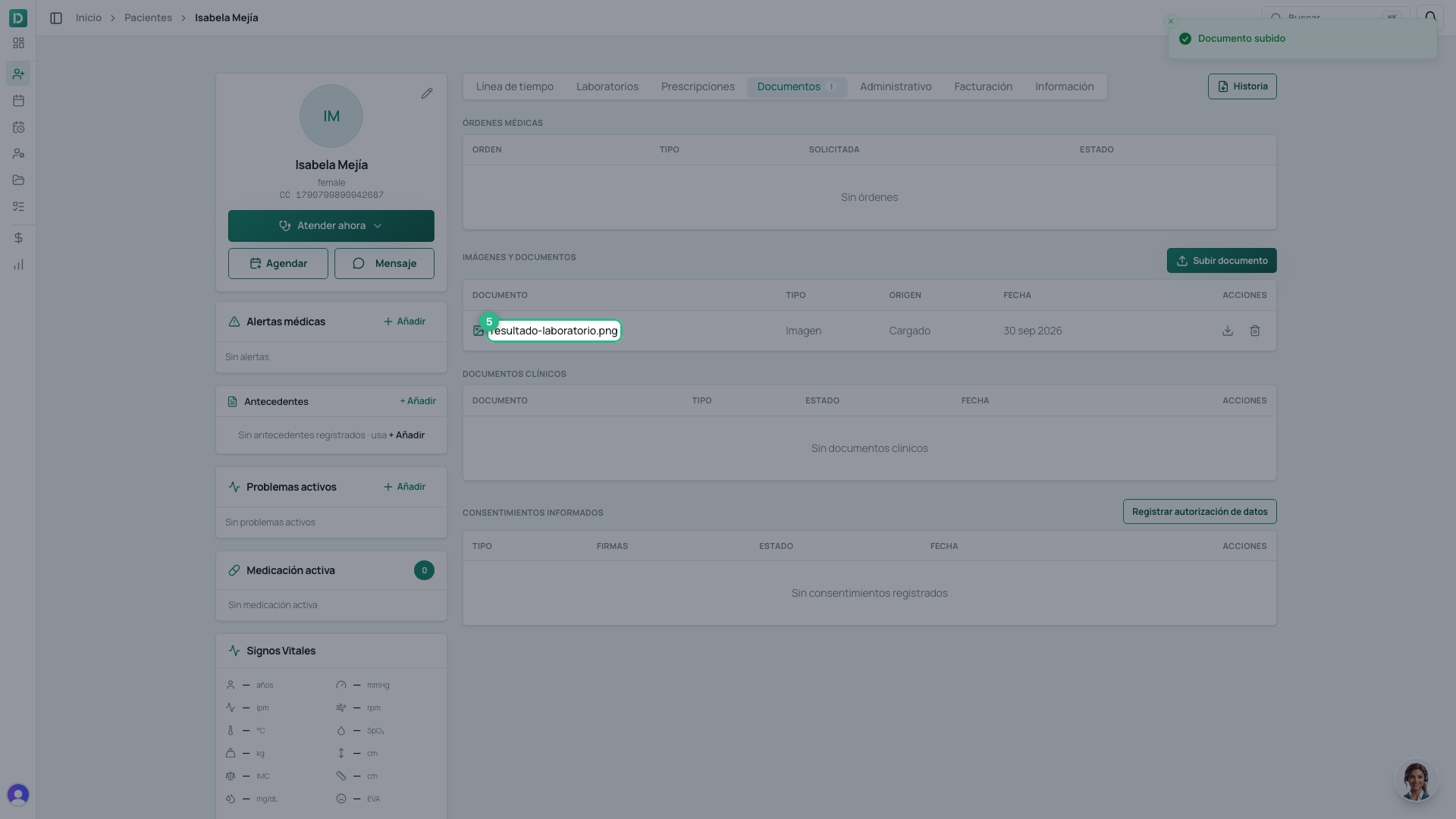
Images and PDF are accepted.
Downloading
Every row has its Descargar button. Clinical documents also offer Descargar PDF (con verificación): that file carries the link proving it is genuine and unmodified.
Careful with Eliminar
Eliminar removes the document from the list. If you deleted one by mistake, write to support before uploading it again, so the record does not end up with two copies.
Tip
Upload the report under a name the patient would recognise. A file called
IMG_4821.jpg tells nobody anything six months later.