How to register an EPS contract and its rates
On this page
In FEV y RIPS → Configuración → Convenios EPS you register the contracts you signed with each EPS: their validity, the coverage and the agreed price for each CUPS code. With that data, visits of that EPS’s patients can be billed to the EPS at the right rate.
No EPS “certifies” software. An EPS pays when the invoice and the RIPS meet the regulations and the service falls within a valid contract. This record is the basis for that.
Before you start
- Have the signed contract at hand (number, validity dates and coverage).
- Prepare the rates in a CSV file with two columns:
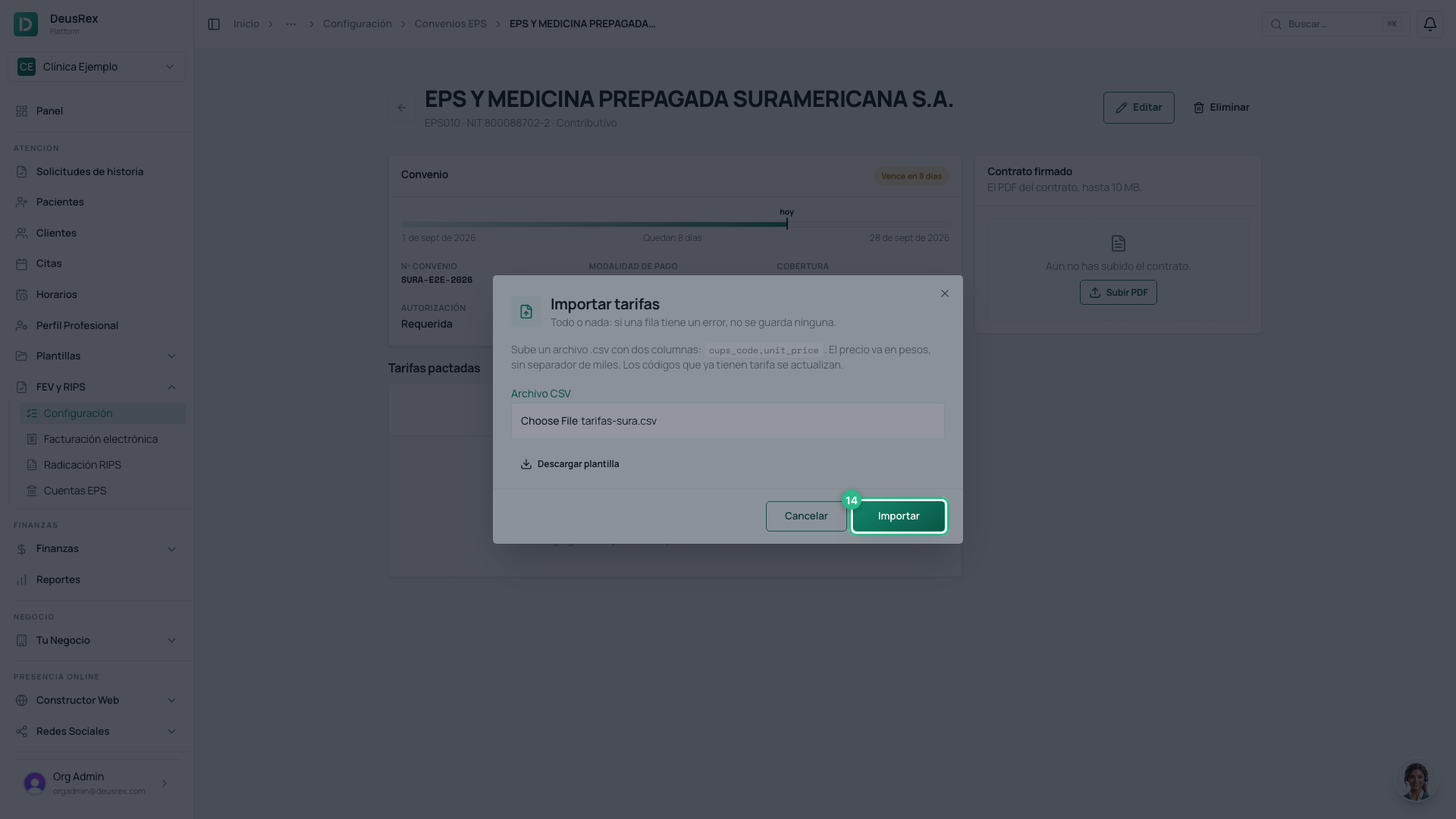
cups_code,unit_price. Prices are in pesos, without a thousands separator (45000or45000.50). Every code must exist in the current CUPS catalog.
Steps
-
Open FEV y RIPS → Configuración in the sidebar and choose the Convenios EPS tab.
-
Tap Nuevo convenio.
-
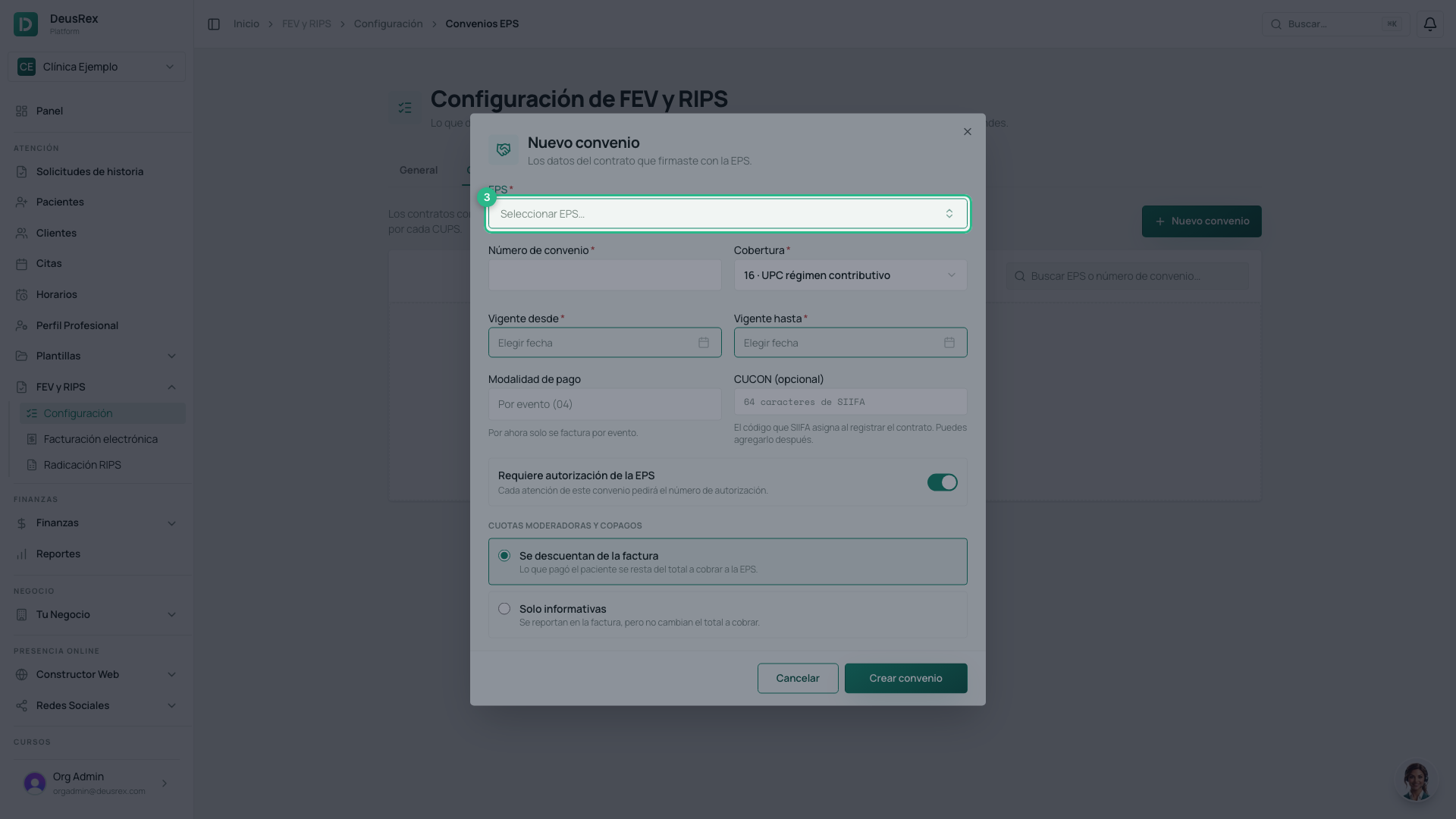
Choose the EPS. You can search by name, code or NIT. An EPS that serves both regimes appears twice: pick the row for the contract’s regime (Contributivo or Subsidiado).
-
Type the Número de convenio and choose the Cobertura: UPC of the contributory regime (16), UPC of the subsidised regime (17), maximum budget (02) or complementary plan (10).
-
Choose the Vigente desde and Vigente hasta dates. Both days count as valid.
-
If you already registered the contract in SIIFA, paste its CUCON (64 characters). If not, leave it empty and add it later with Editar.
-
Say whether the EPS requires authorization for each visit and how moderator fees and copayments are handled: deducted from the invoice or informative only.
-
Tap Crear convenio. The contract’s detail opens.
-
Under Tarifas pactadas, tap Importar CSV, choose your file and tap Importar.
-
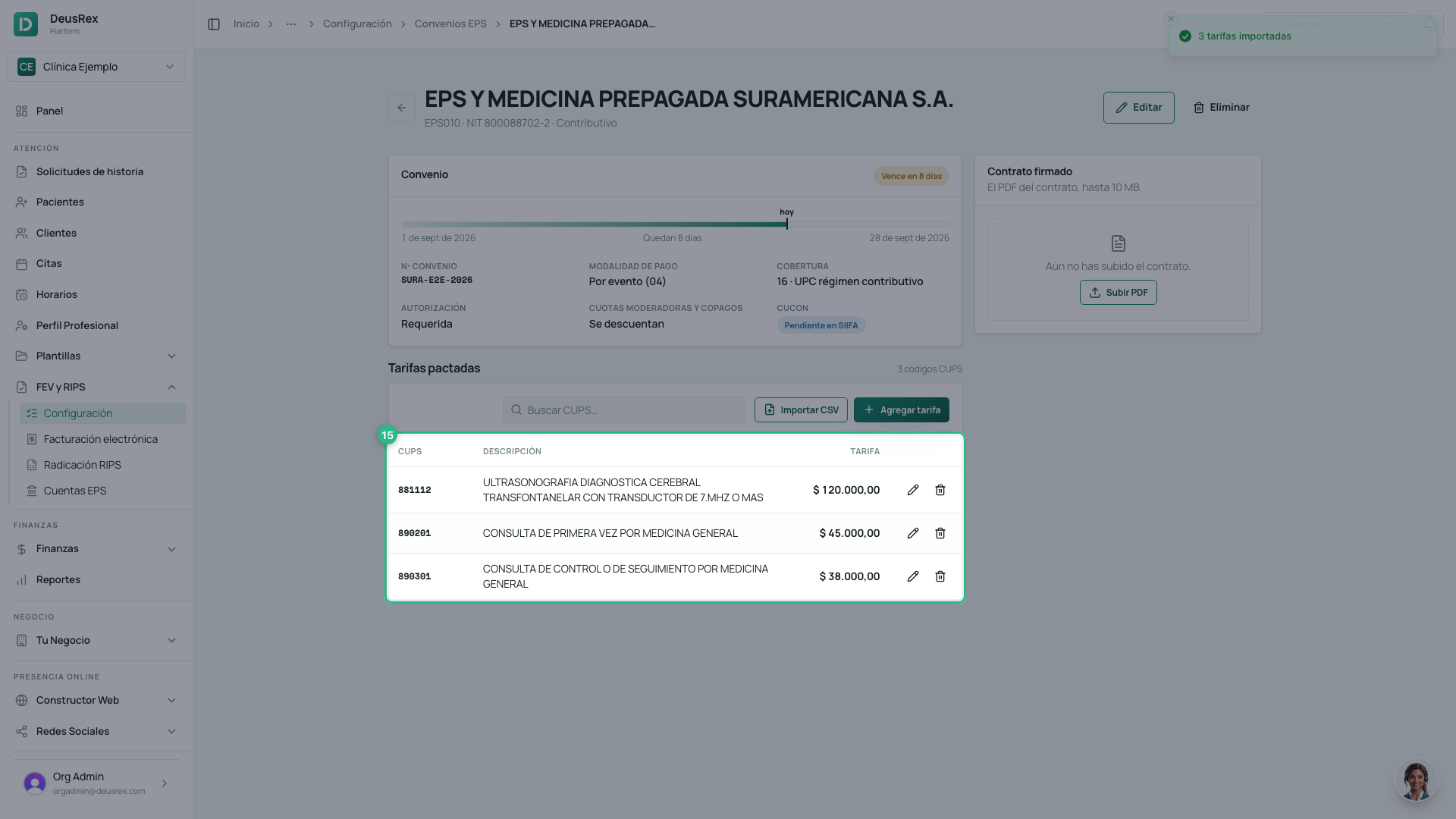
The rates appear in the table, each with the official description of its CUPS code.
If the file has errors
The import is all or nothing: if a single row has a problem, none is saved,
and the window lists every row with an error (line, code and reason): a
code not in the catalog, a zero price or one with more than two decimals, a
repeated code, or a header other than cups_code,unit_price. Fix the file and
upload it again.
Importing a code that already had a rate updates its price. Rates that are not in the file are kept.
Other contract actions
- Agregar tarifa: adds or changes the price of a single CUPS code.
- The pencil and bin on each row edit or delete that rate.
- Contrato firmado: upload the contract PDF (up to 10 MB) to keep it handy.
- Editar: change the contract’s details or mark it inactive. An inactive contract is not used for billing even within its validity.
- The validity bar shows where today falls within the contract, and the label warns when 30 days or fewer are left.
Patients with an unlinked EPS
A patient’s EPS is now chosen from SISPRO’s official catalog. If a patient was registered earlier with a hand-typed EPS that matches none in the catalog, the contracts screen shows a notice that patients have an EPS that is not in the catalog. Tap Ver pacientes, open each one and choose their EPS in the Aseguramiento section.
External IPS
If you work inside an IPS that bills the EPS directly, register it in FEV y RIPS → Configuración → IPS externas with Nueva IPS: name, NIT (digits only, without the check digit) and the 12-digit REPS code listed in the Special Registry of Providers. On that same row, Exportar atenciones prepares what the IPS needs to invoice (guide How to export the visits you provide at an IPS).
With your first contract, FEV y RIPS → Cuentas EPS appears: that is where you invoice the EPS and follow what it owes you.